-
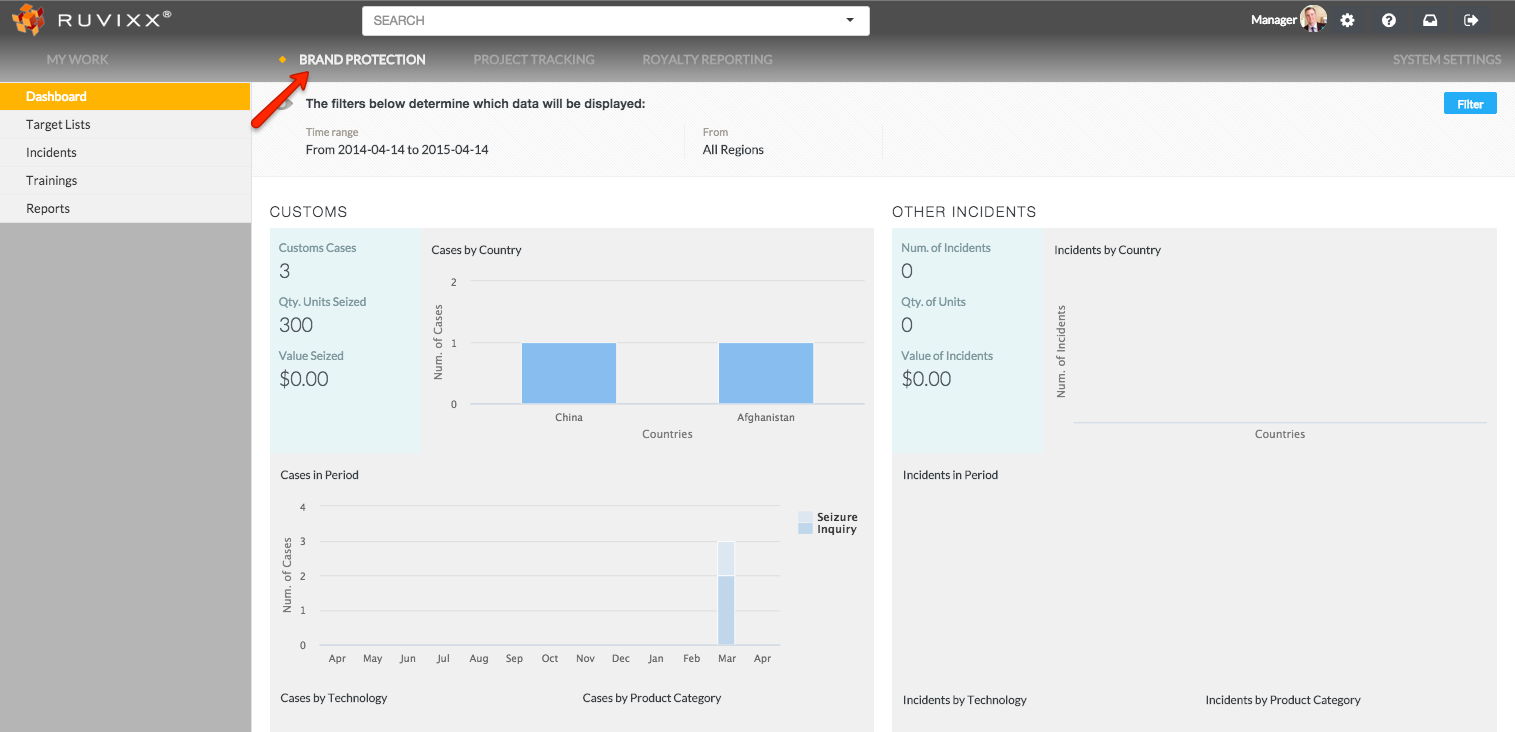
Click the Brand Protection button on top menu bar
-
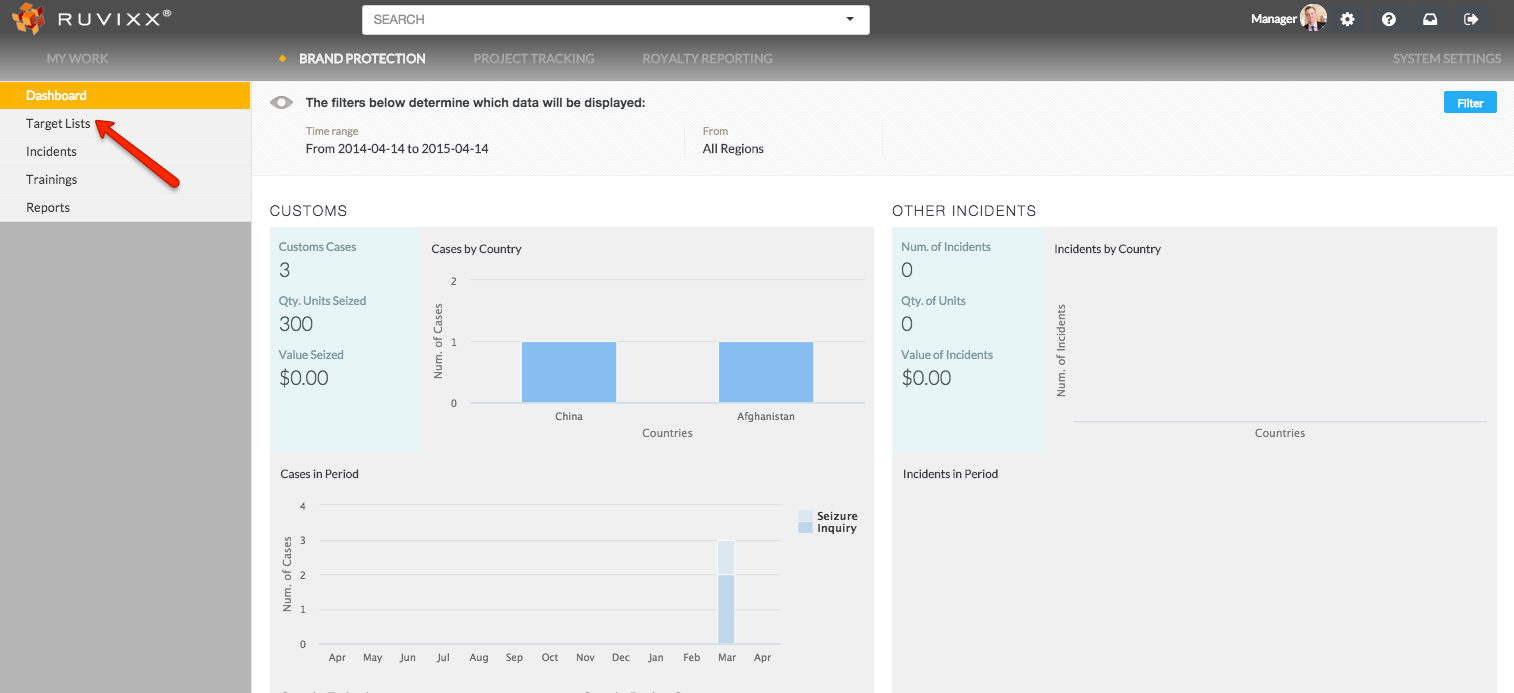
Click on Target Lists on the left hand navigation pane
-
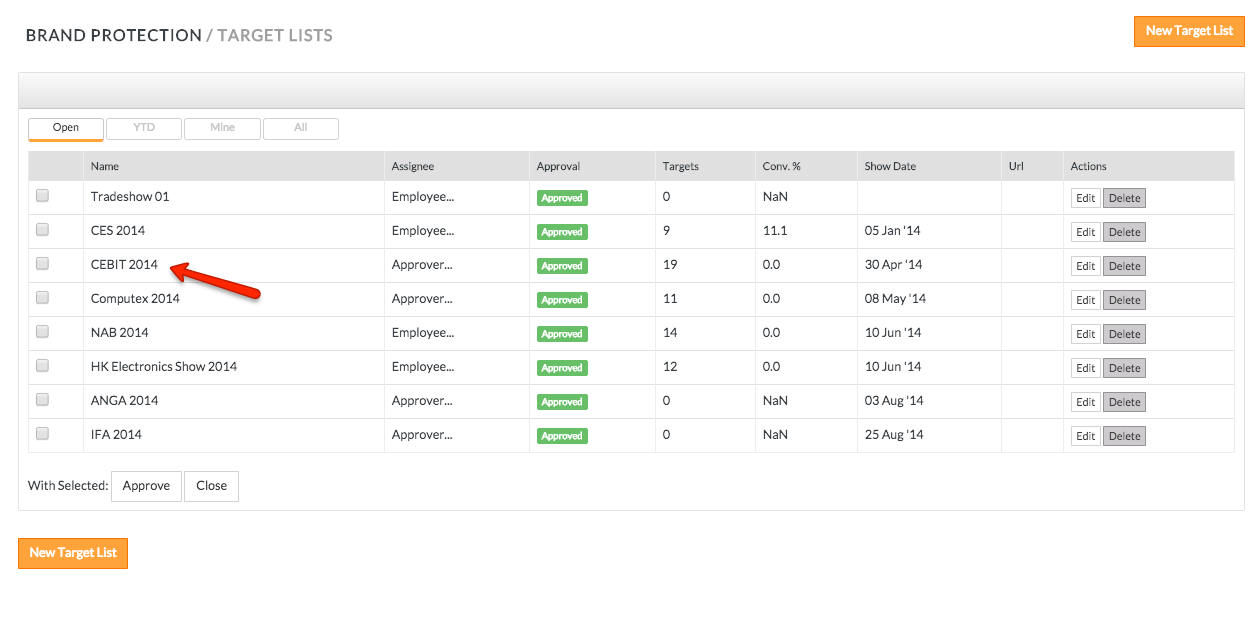
Click on an existing target list record
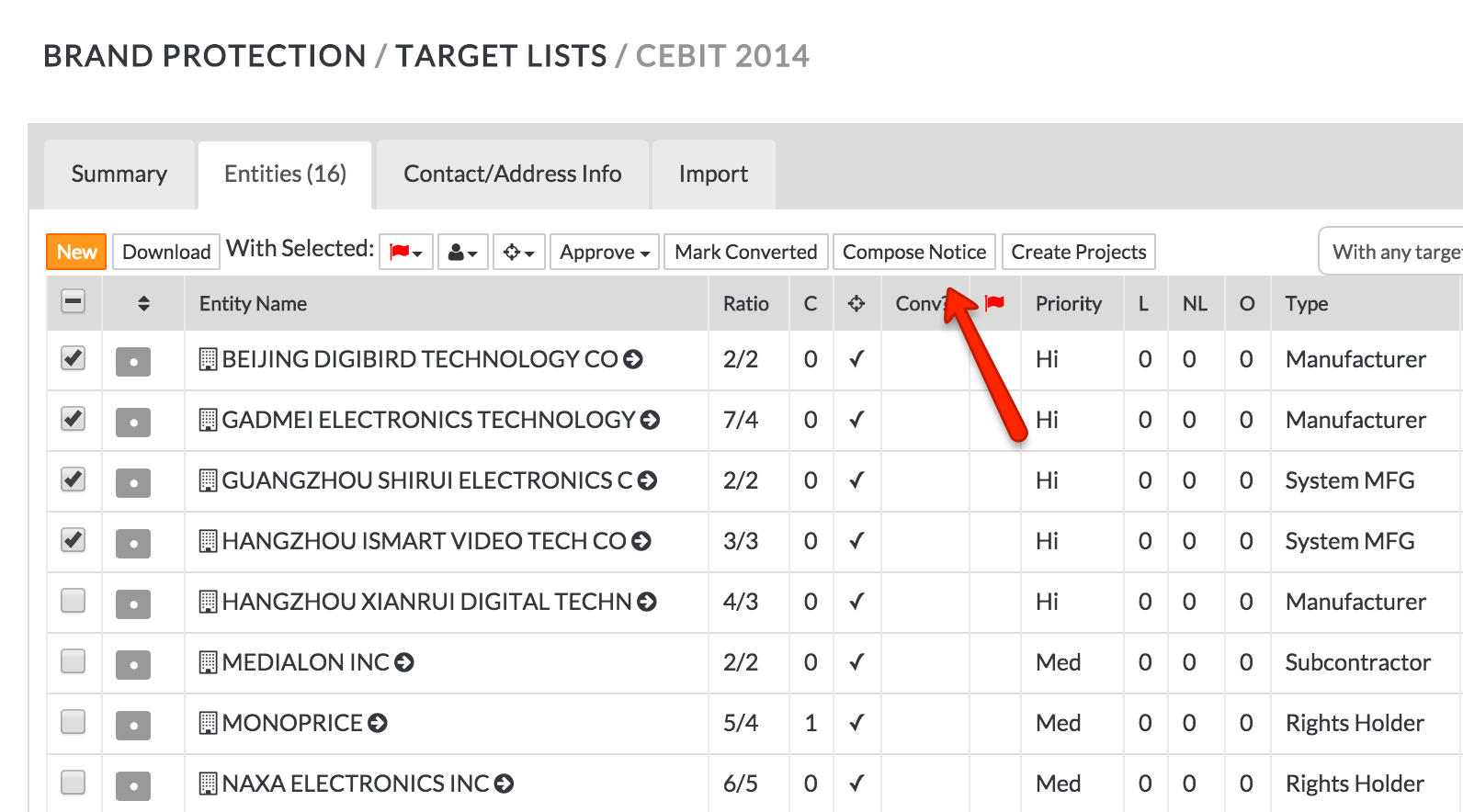
- Select an entity (or entities) by 'checking off' the box to the most left of the Entity Name (exhibitor)
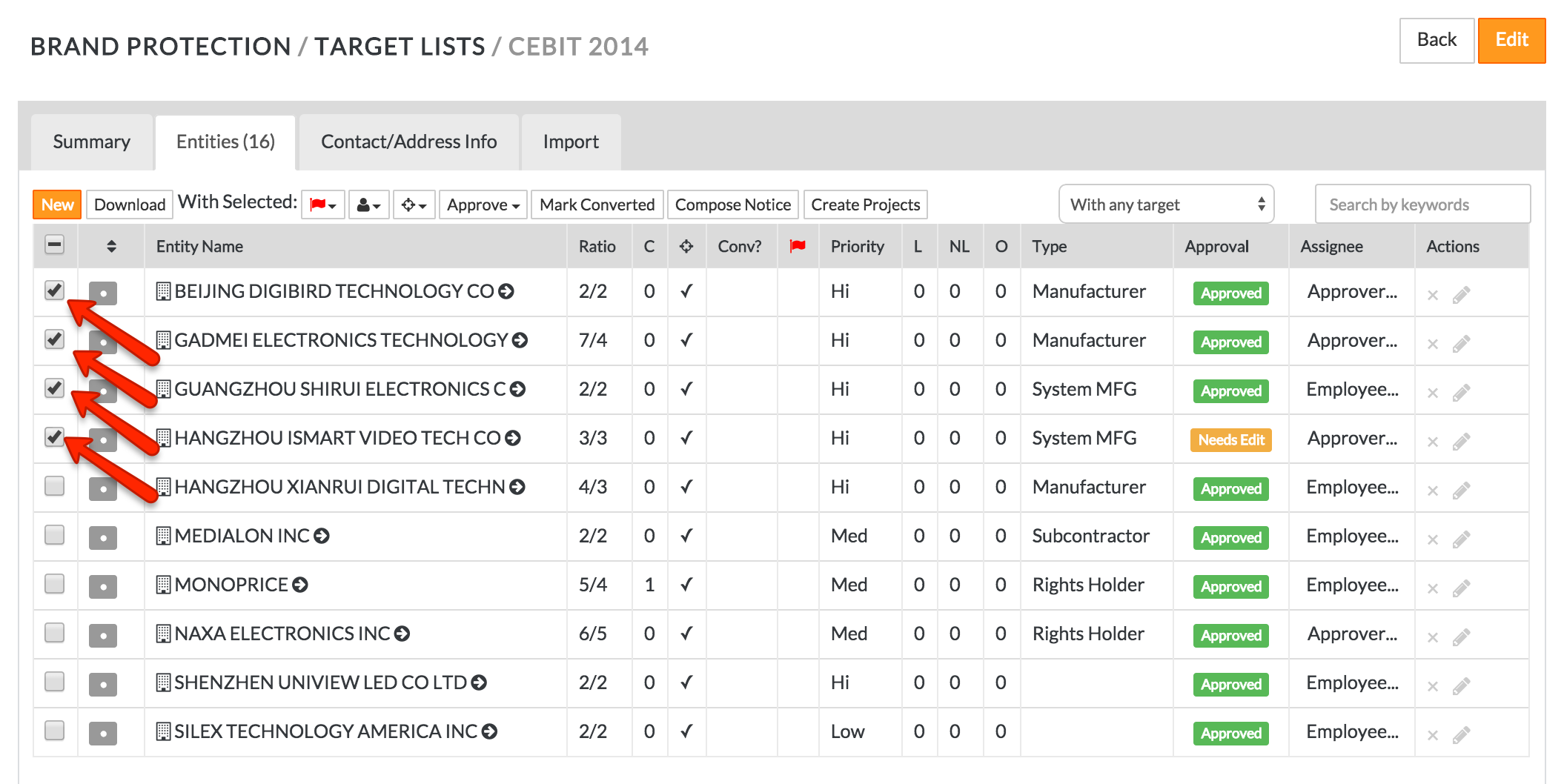
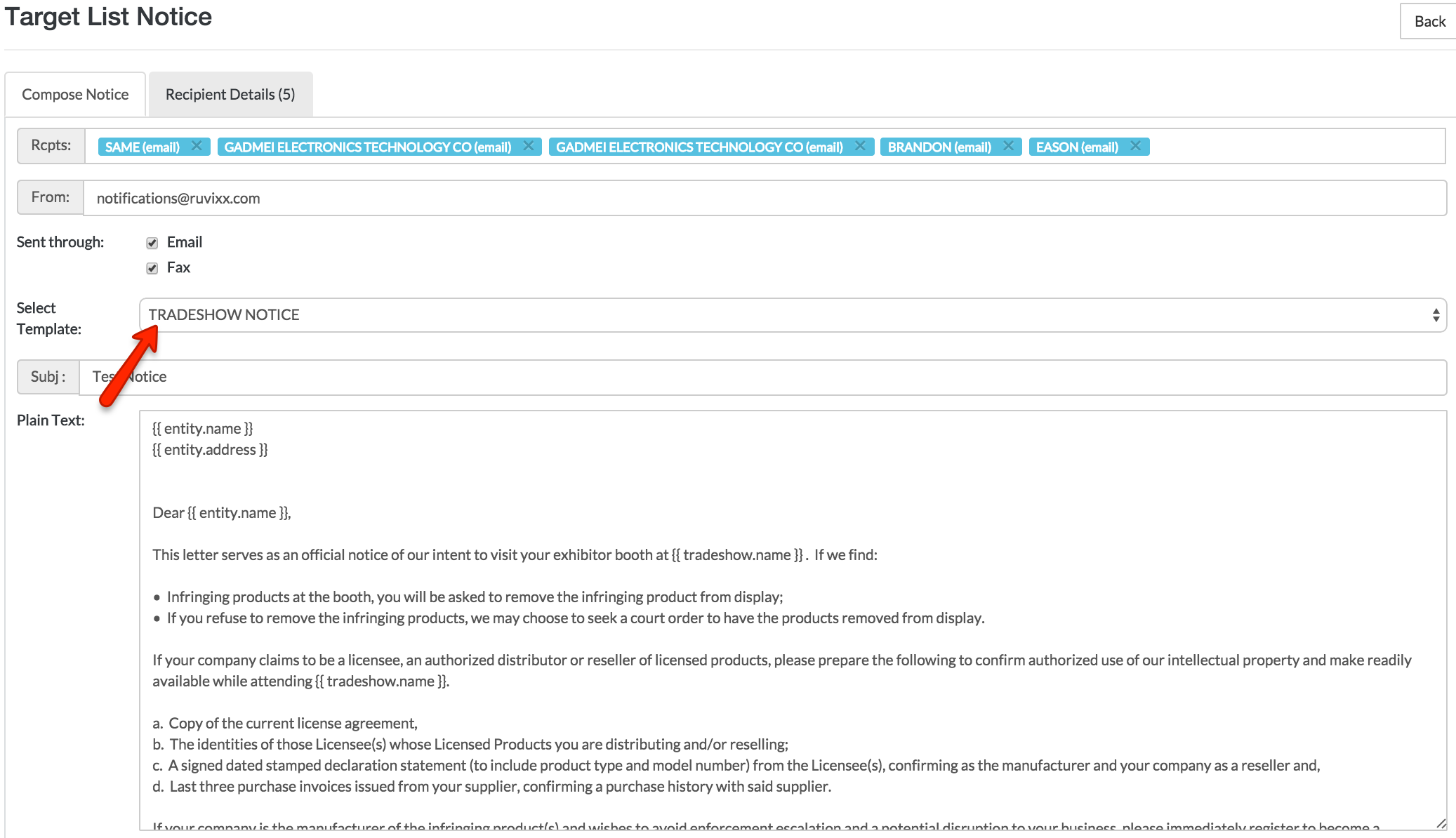
- Click Compose Notice on the top button menu
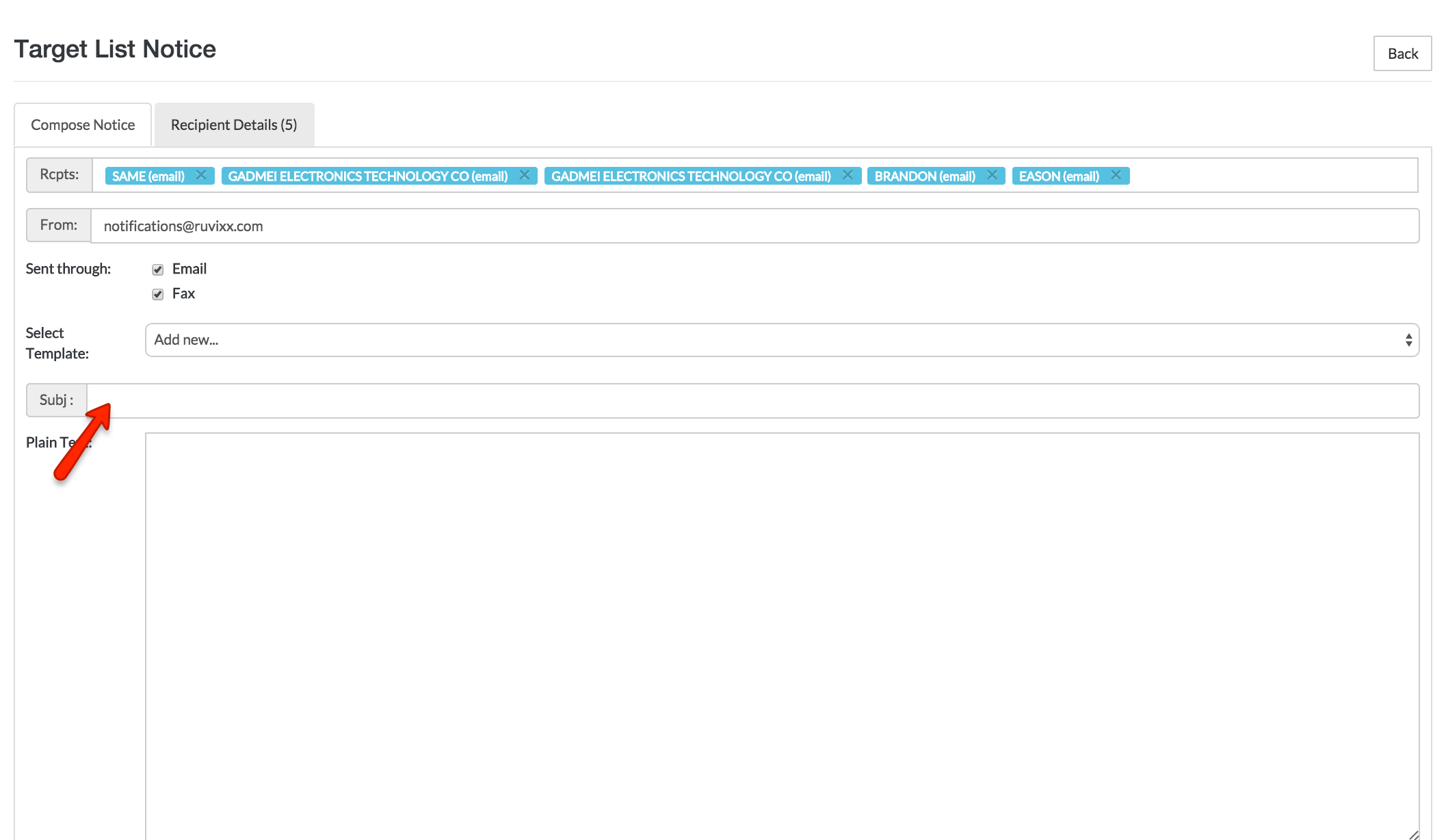
- Fill in the “Subj: line with the subject (for email)”
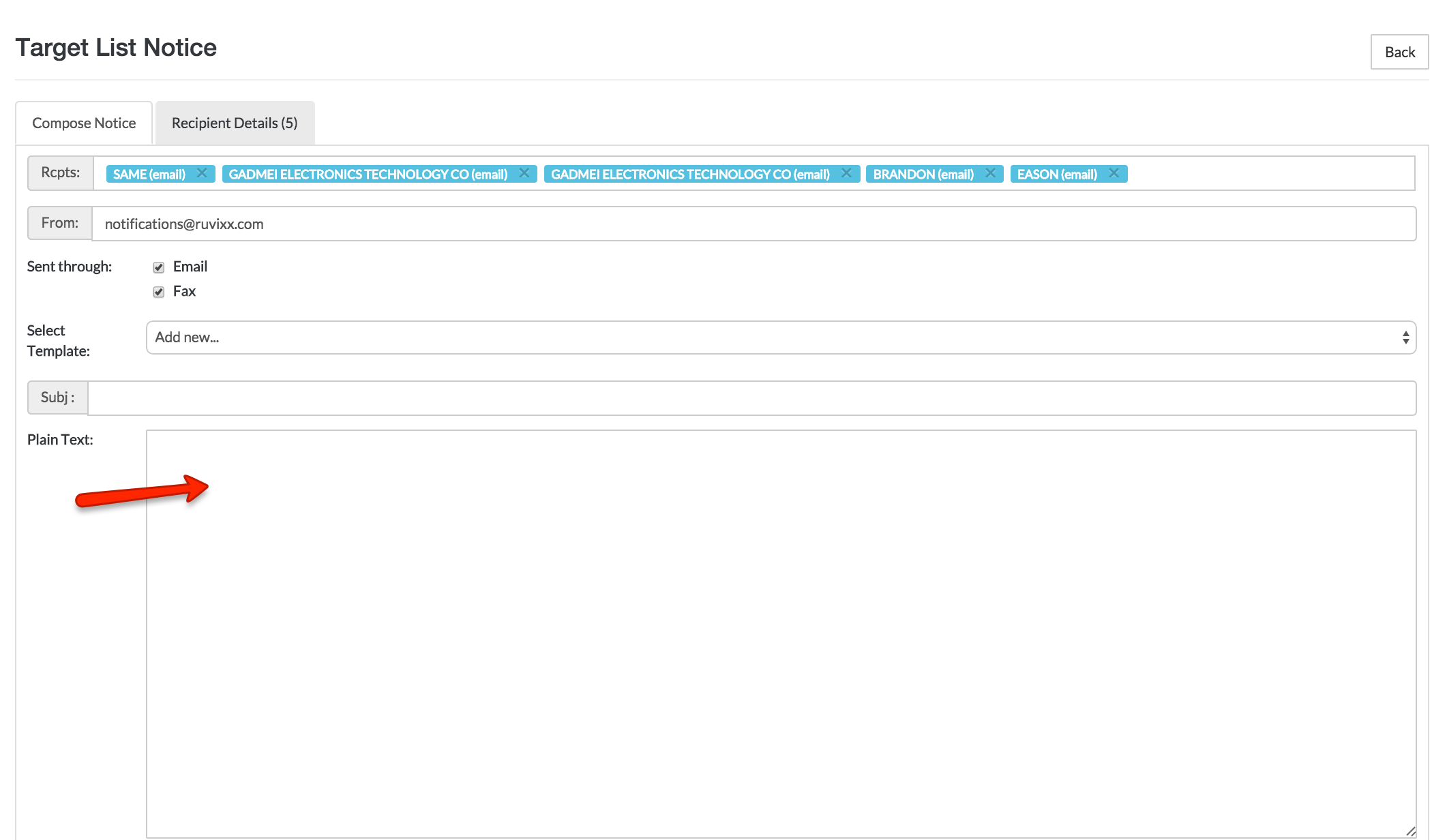
- Fill in “Plain text contents” with the contents which will be used to render the PDF
- Fill in “HTML Text” with the contents which will be used to render the HTML Email (this is automatically edited with rich text editor (WYSIWYG) into HTML format
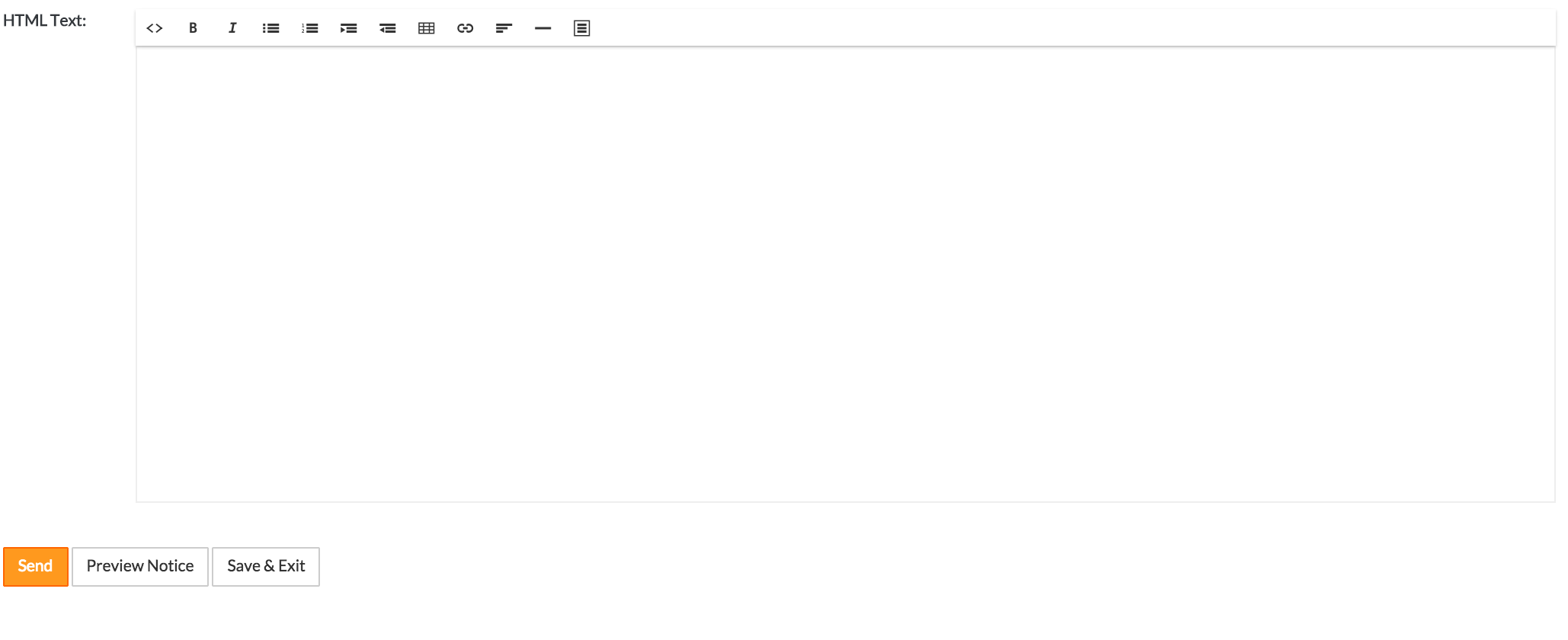
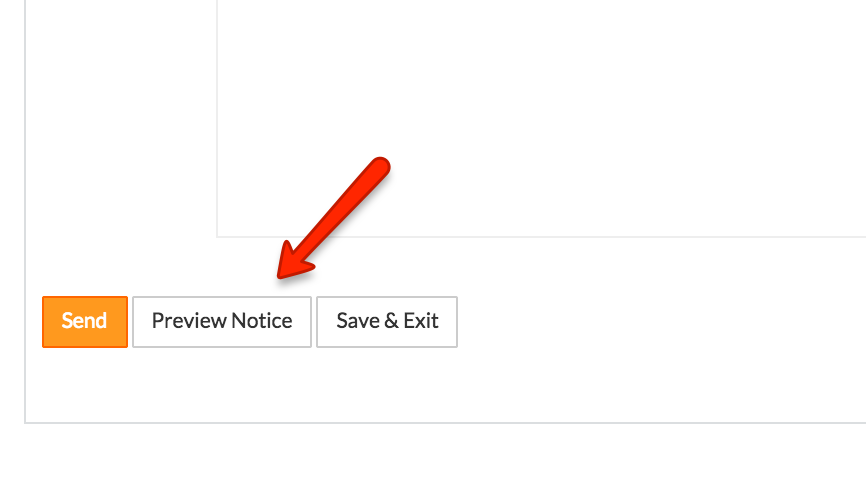
- Click Preview Notice to download the PDF
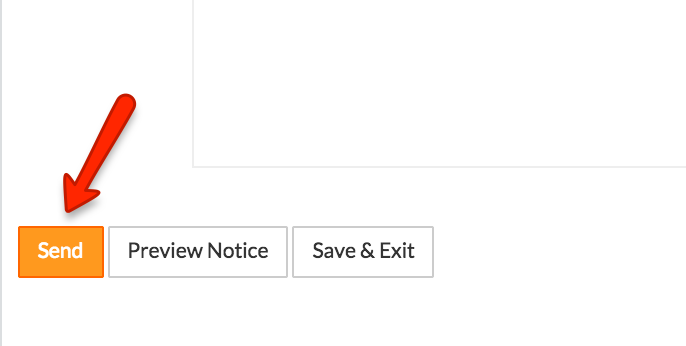
- Once you are satisfied with your formatting, click Send to save the template and send your notice
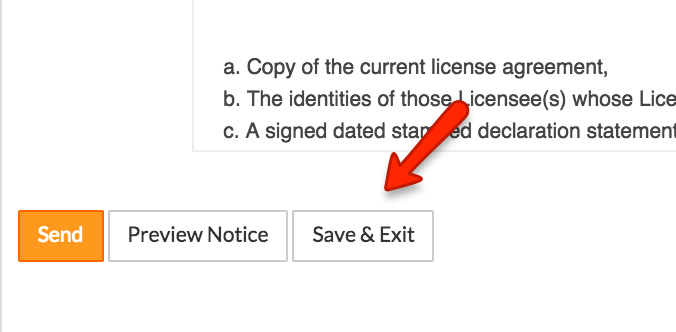
- You can also click Save & Exit to save the template without sending it.
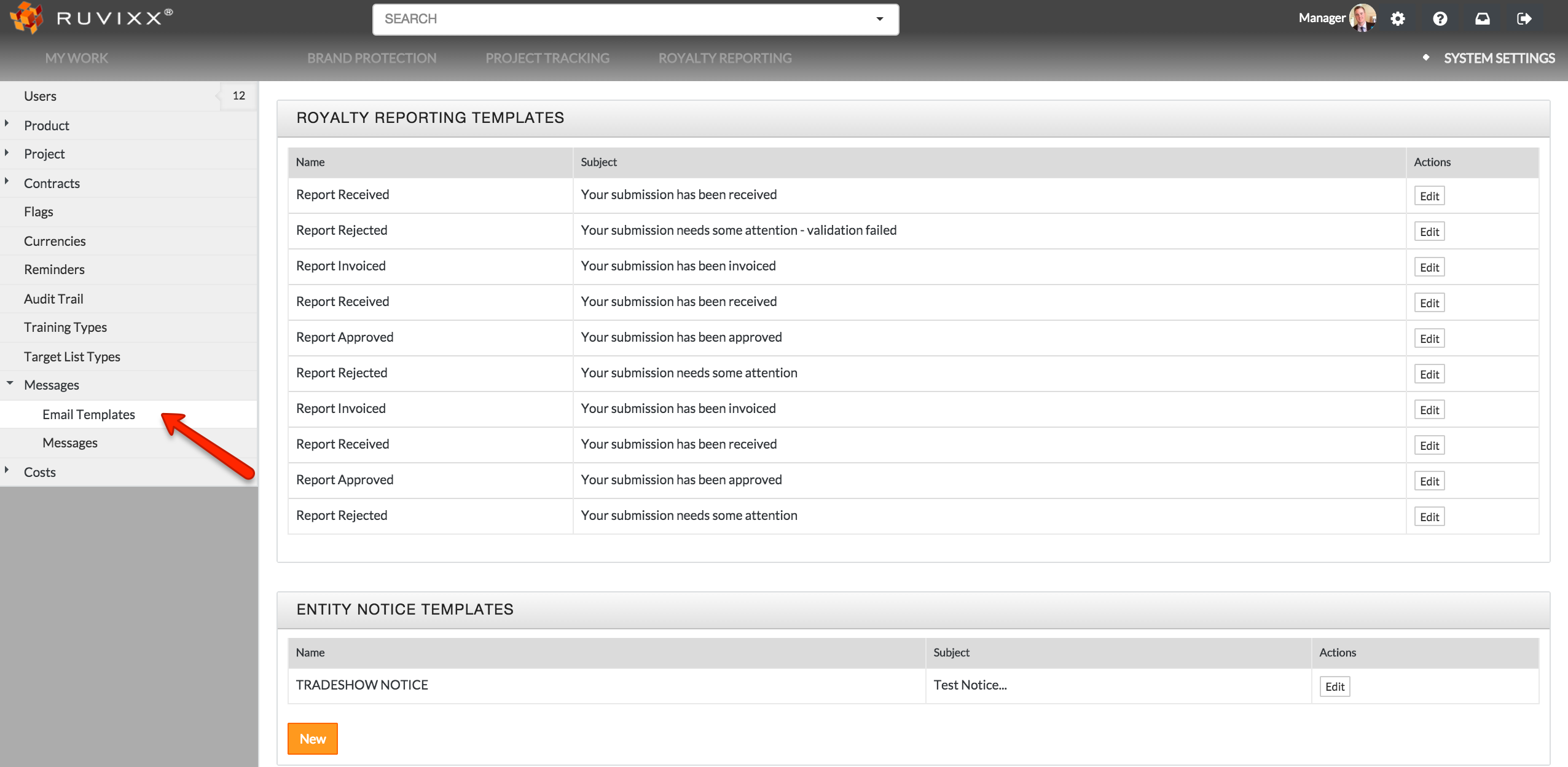
- The template will be saved in Email Templates located in the 'Messages" category of the System Settings navigation pane on left hand side of page
- When you return to Compose Notice, the template you previously created will be displayed in the Select template drop-down menu
Comments