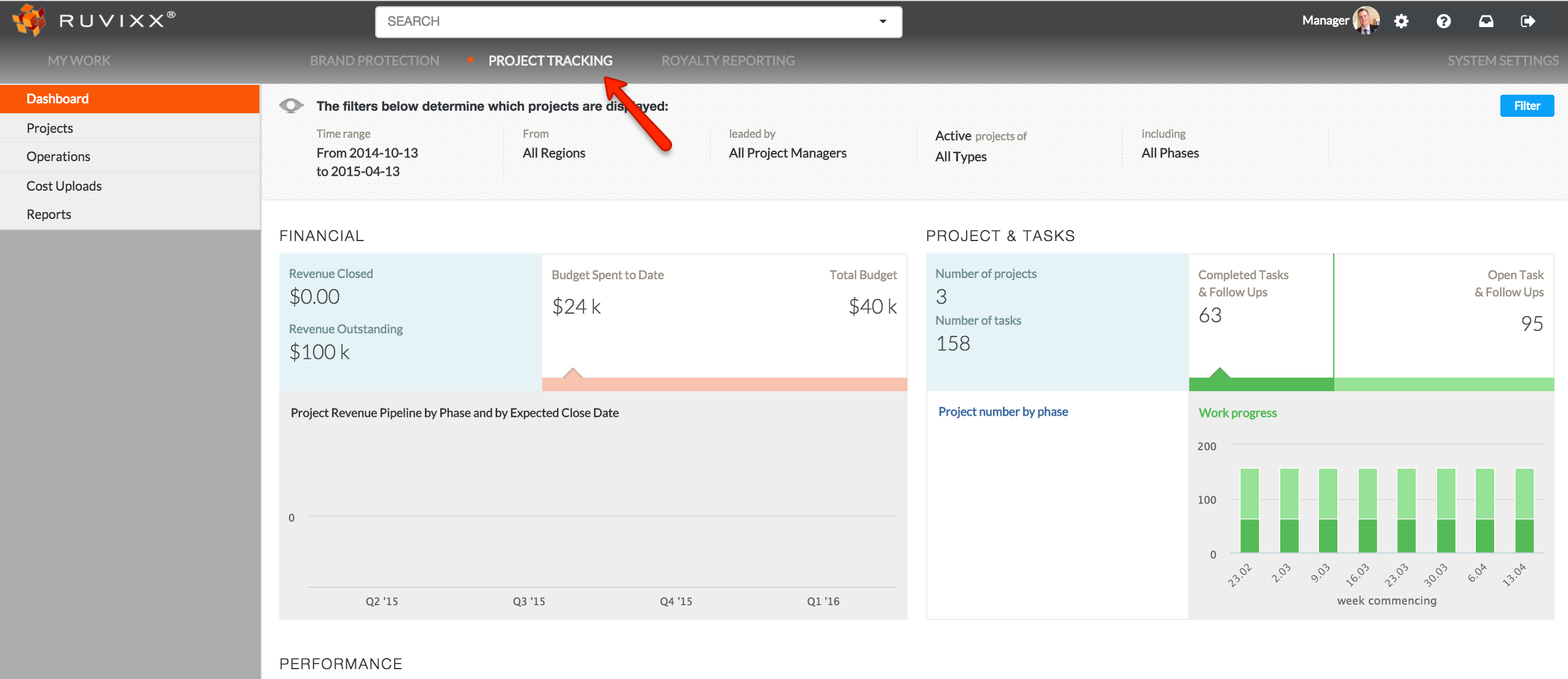
- Click the Project Tracking button from the top menu bar
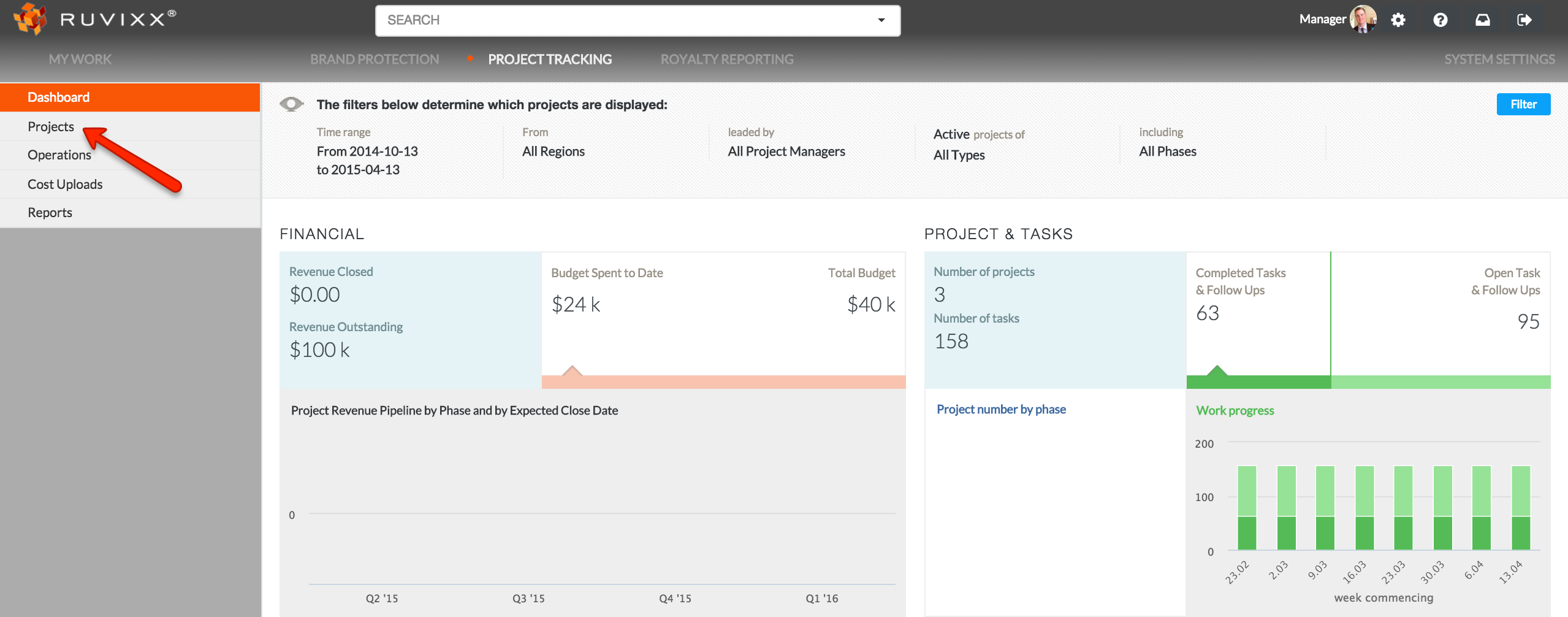
- Click on Projects from the left hand side navigation pane
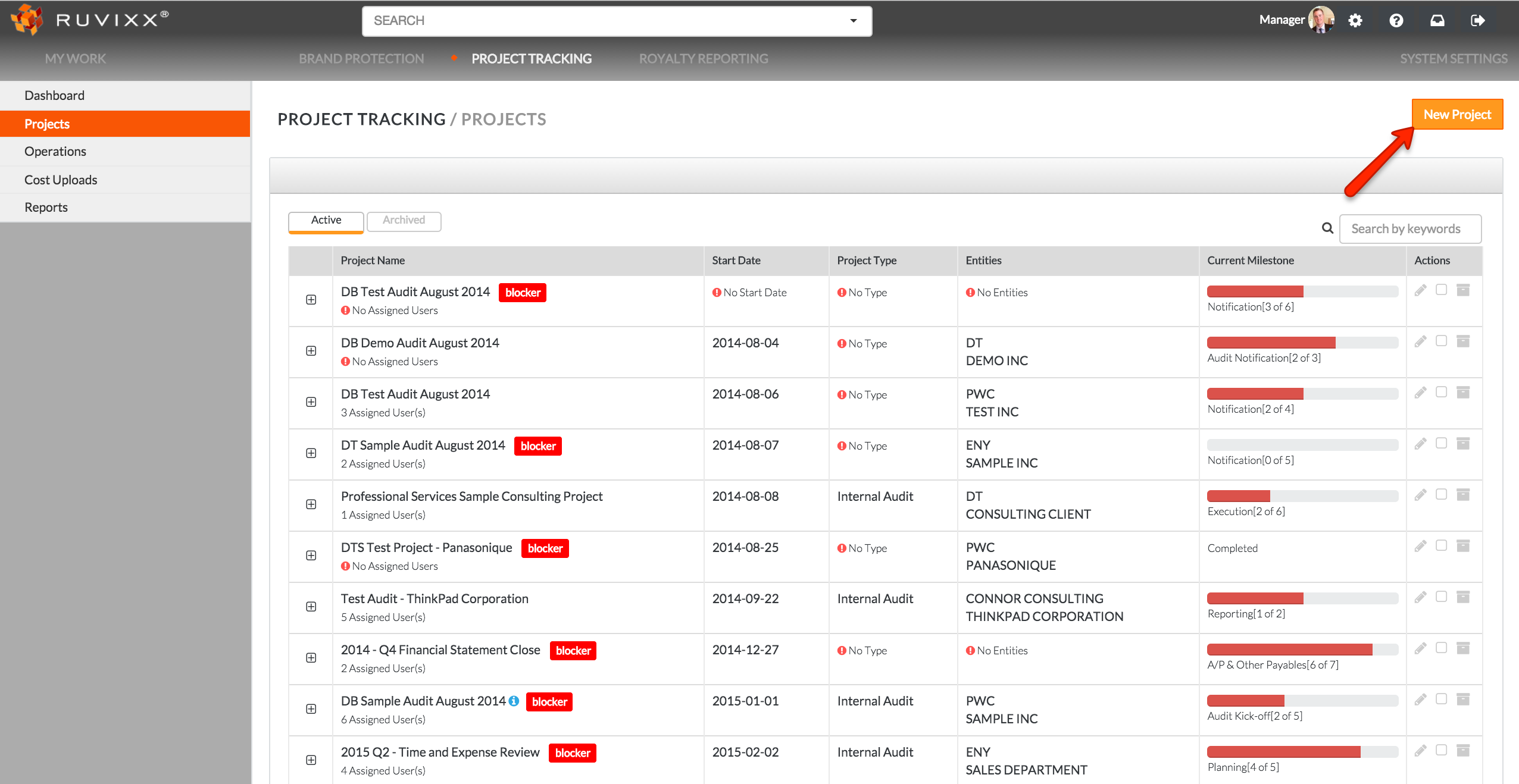
- Click the New Project button on the top right highlighted in orange
- Only the project name field is required
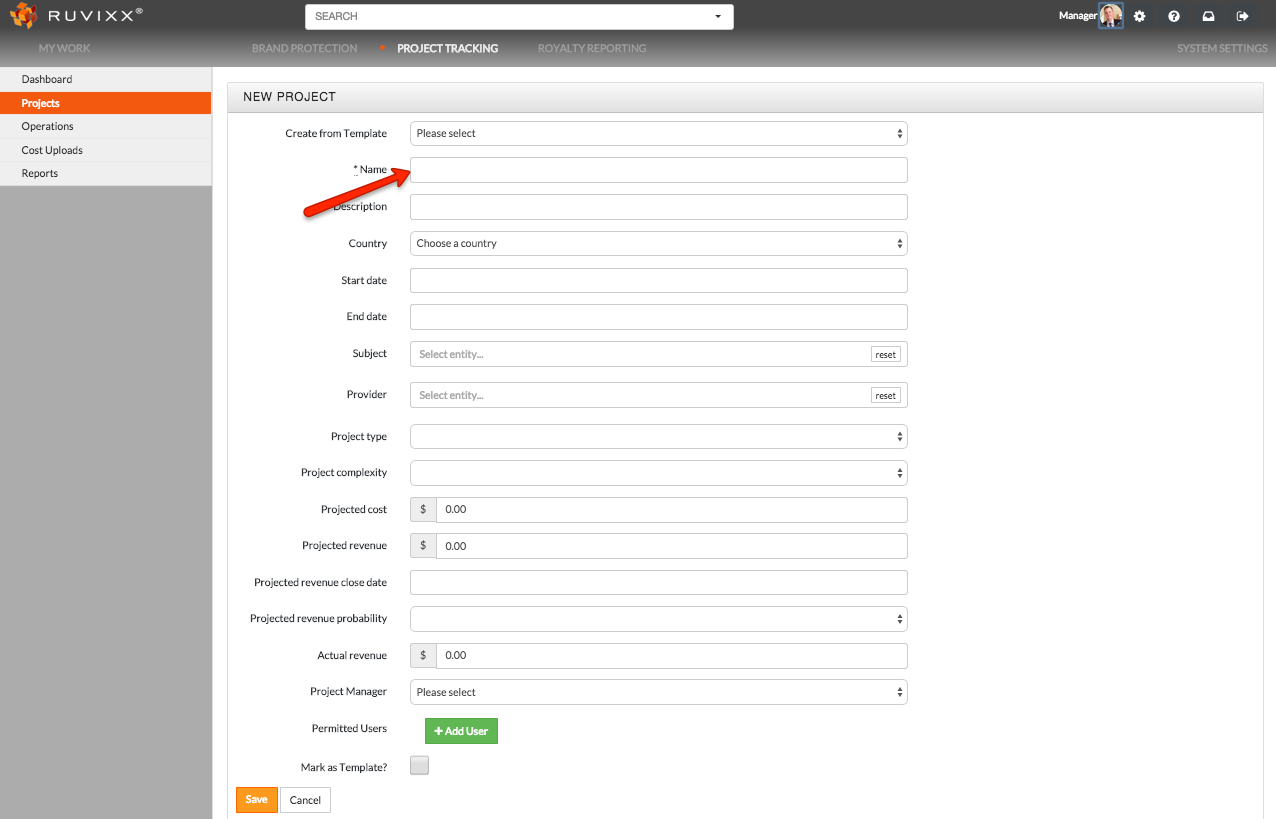
- Fill out any related fields to the project
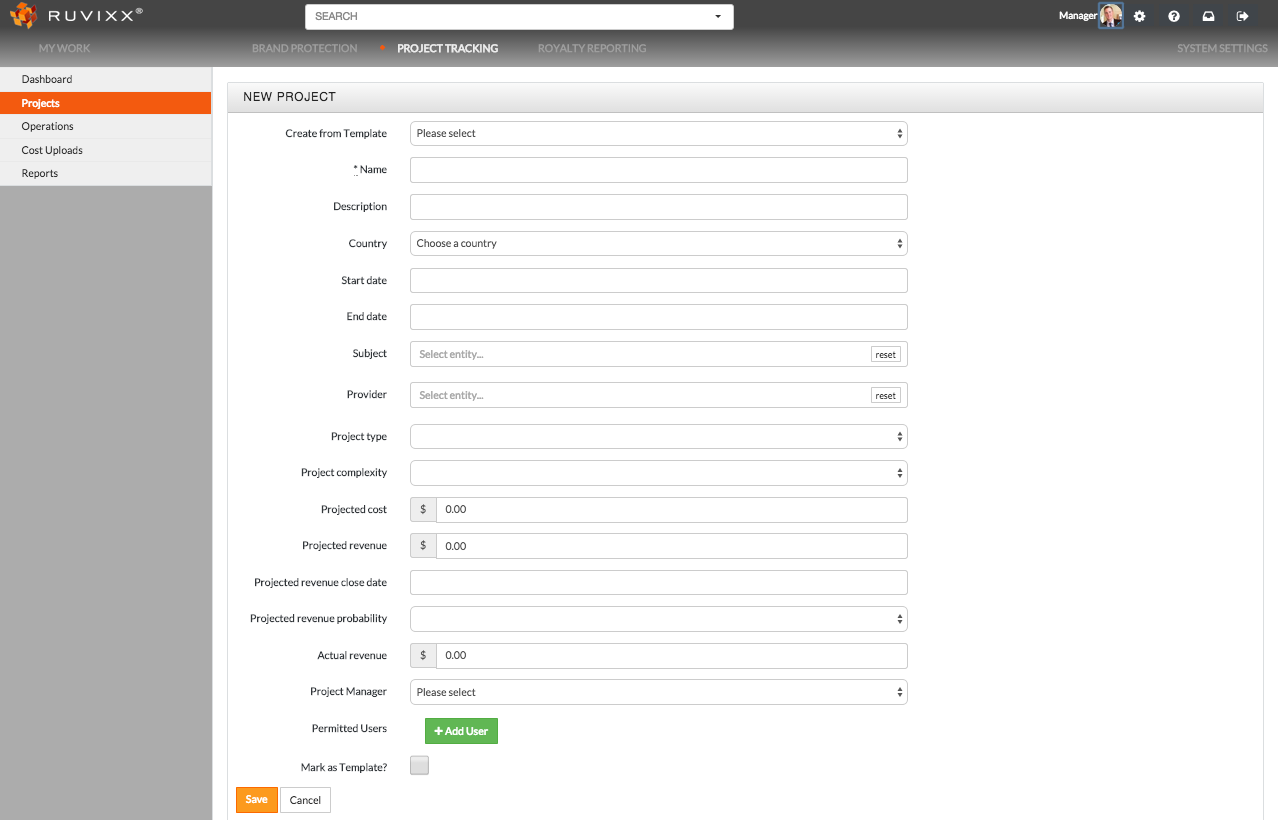
- Assign a Project Manager
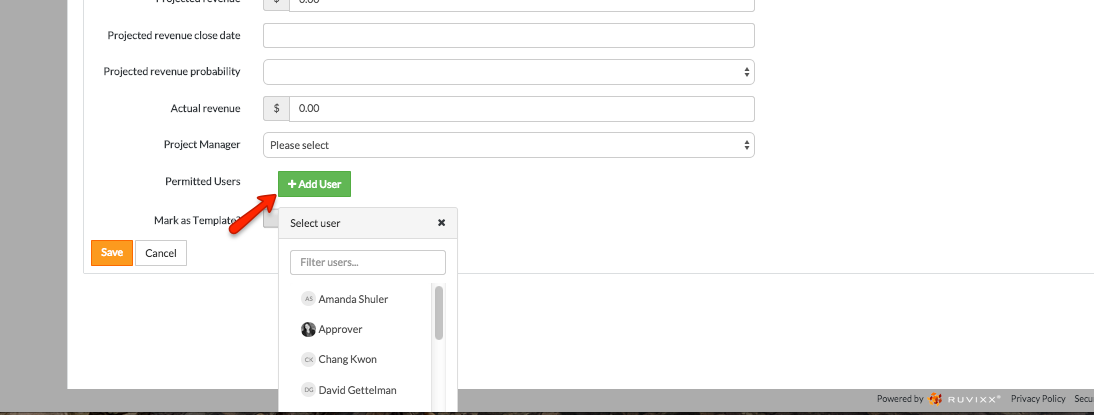
- Click the green 'Add user' button to select all Permitted Users associated with the Project
TIP* By clicking the Mark as Template checkbox, the current project can be used as a template when creating new projects. All Milestones and tasks will be saved to your new projects. 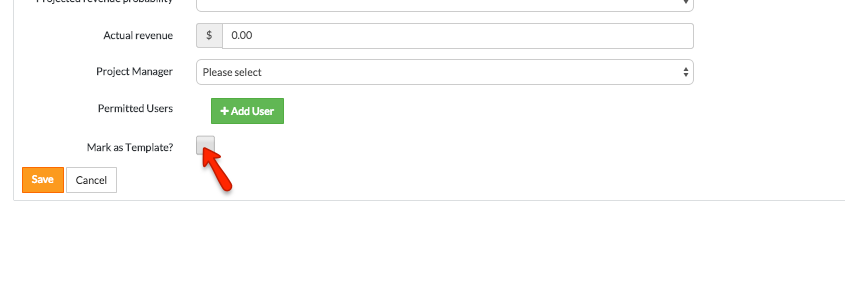
Comments