- Click on Project Tracking
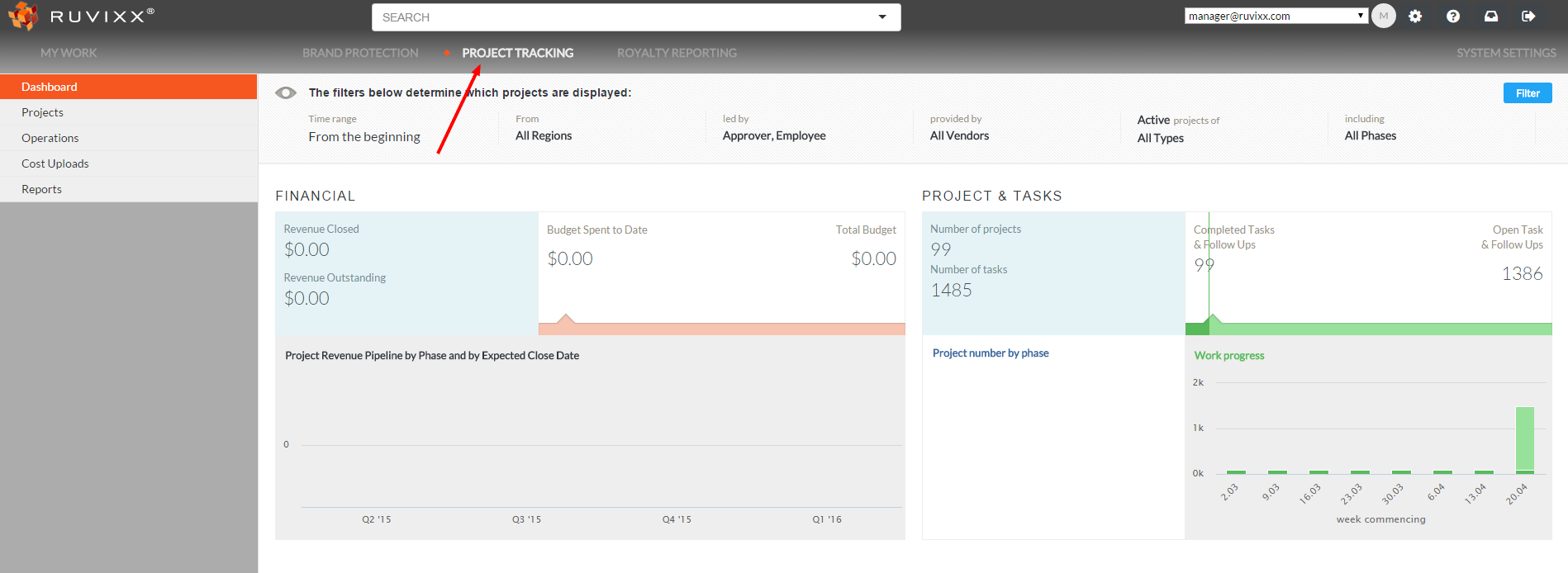
- Click on Projects from the left hand side navigation pane
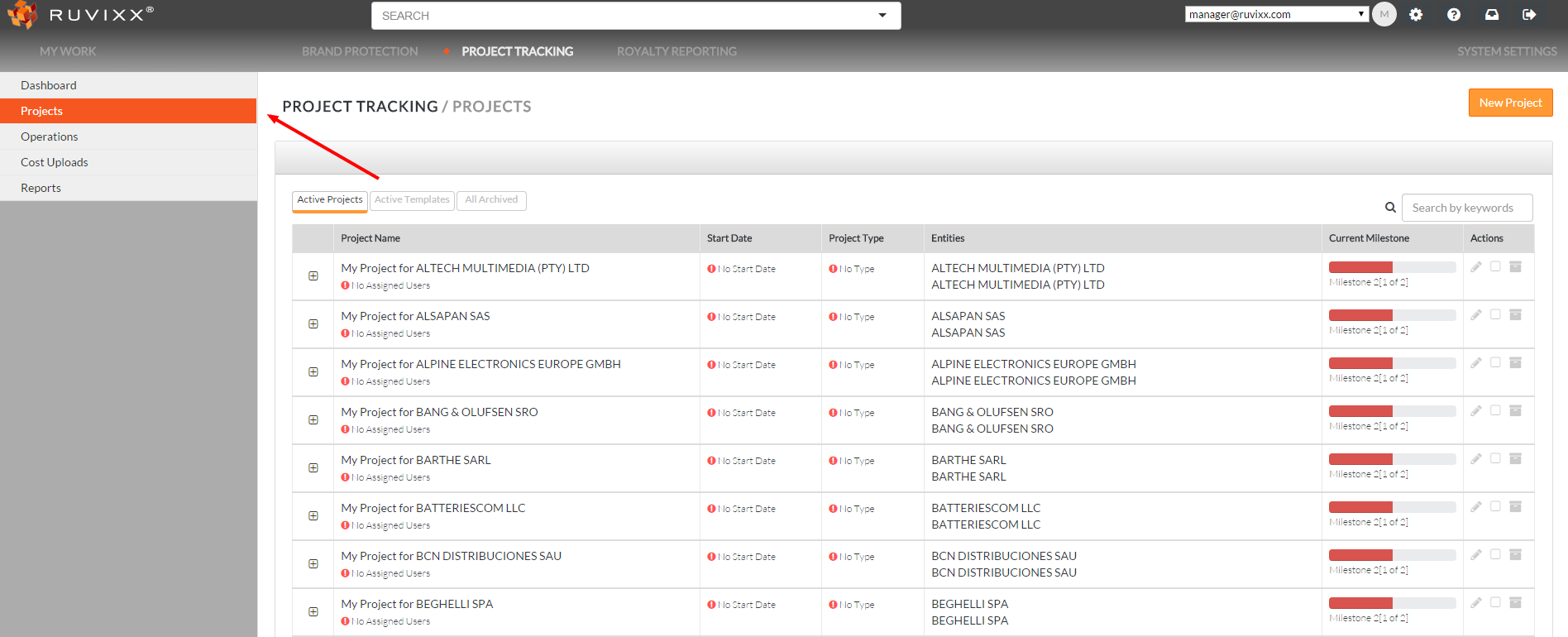
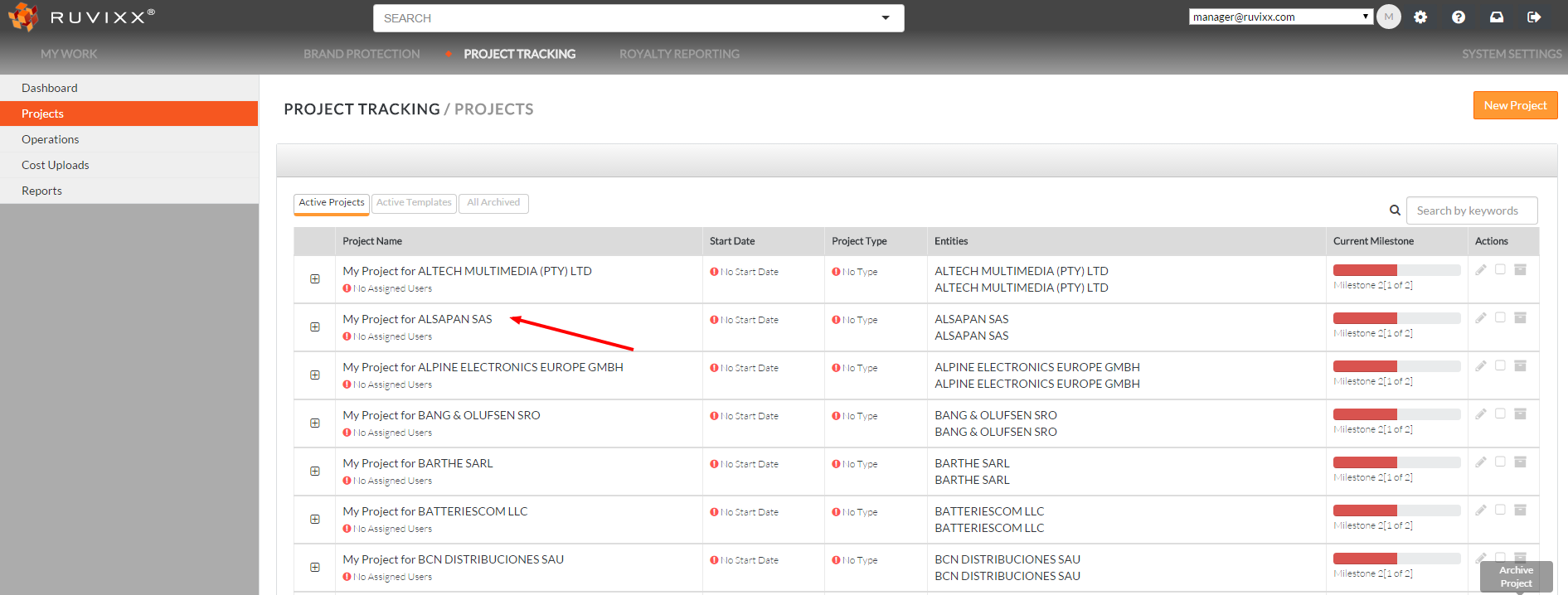
- Click to open the specific Project you wish to create a Milestone for
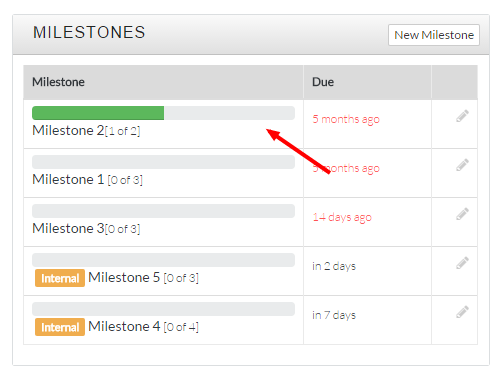
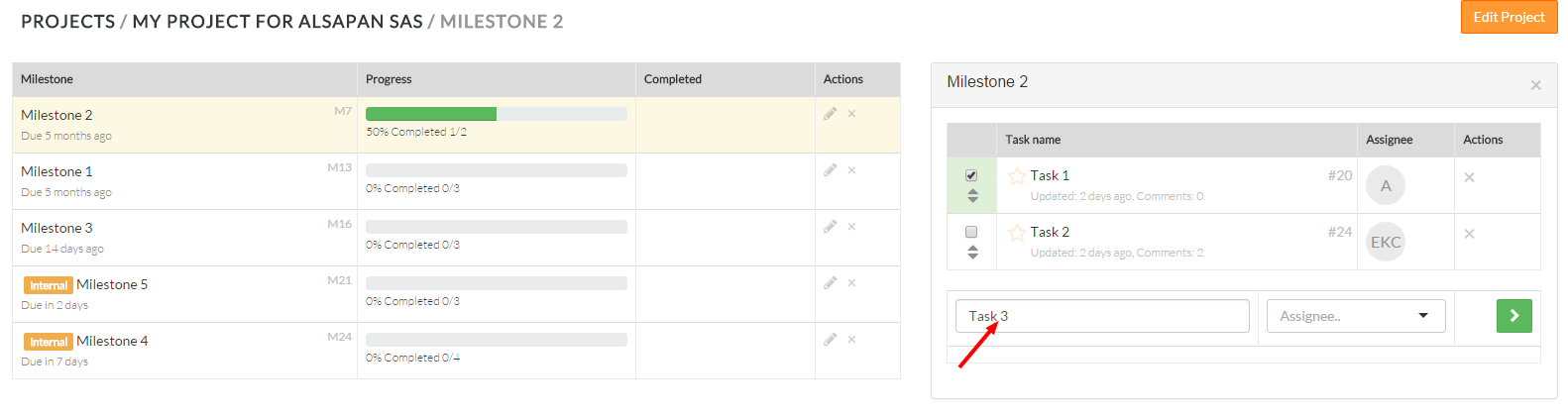
- Click to open the specific Milestone you wish to create a task for
- Type the name of the task in the task widget box on the right
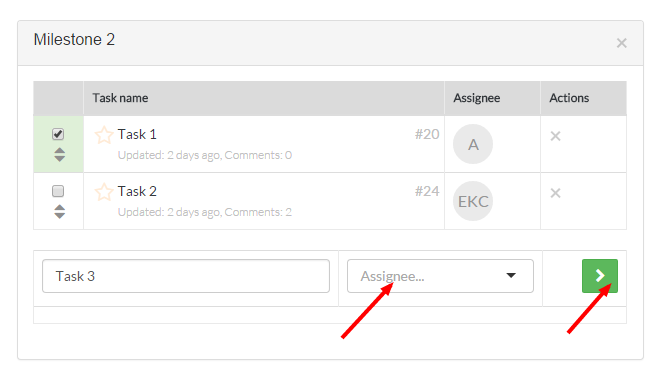
- Assign a user to oversee the task from the Assignee drop down list, then press the green arrow
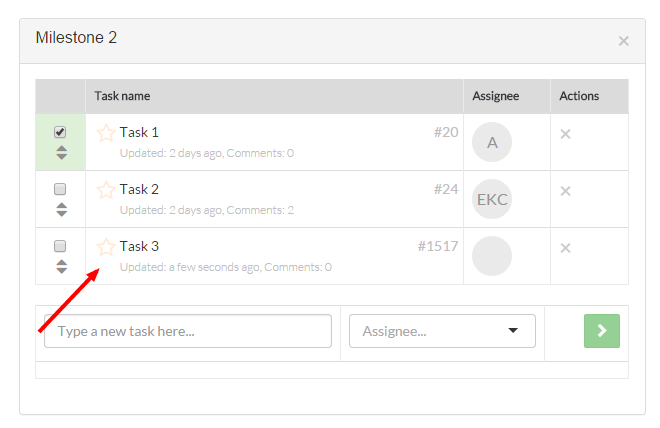
- Your task is now created!
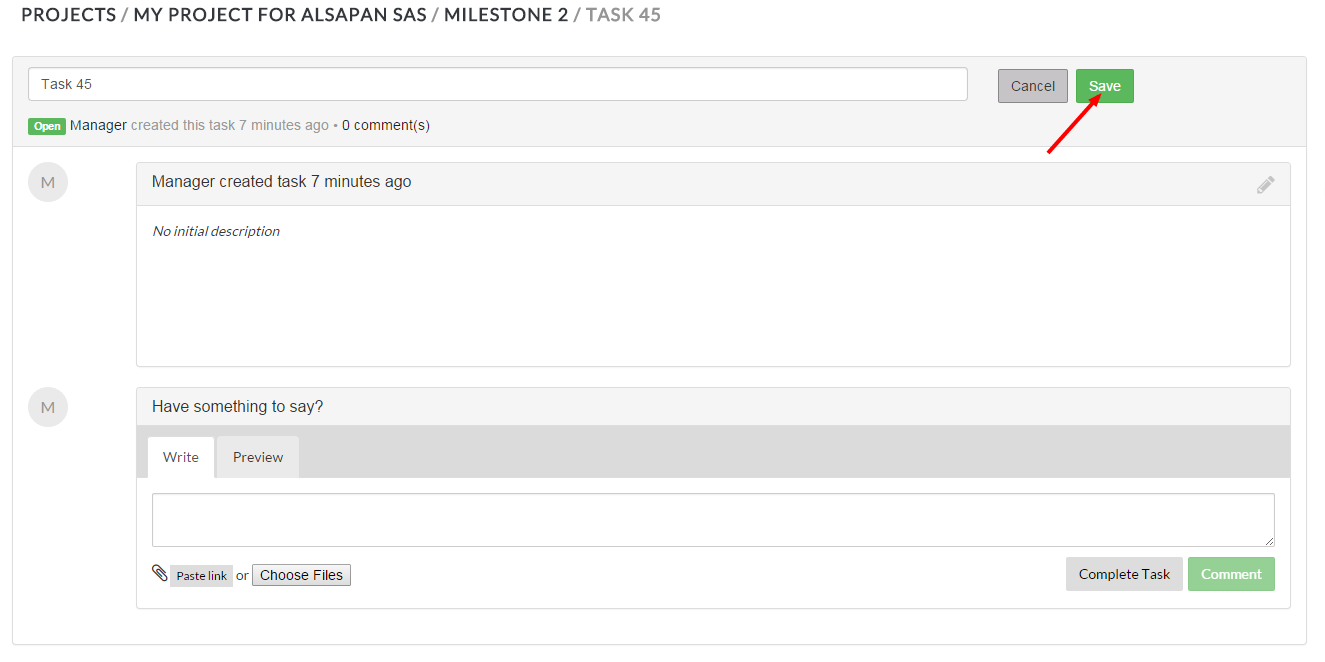
- To edit task names, open the task you wish to edit the name for, then click on the edit icon next to the task name (pencil sign)
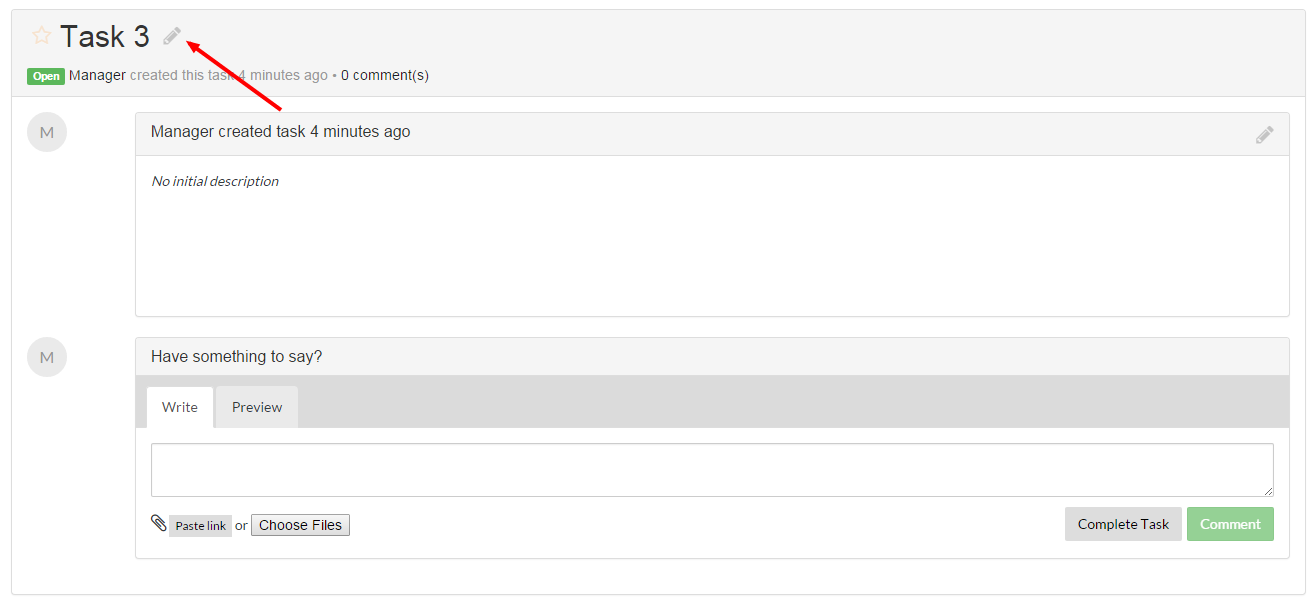
- Click the Save button once you have completed making your changes
Assigning tasks can be done in two ways:
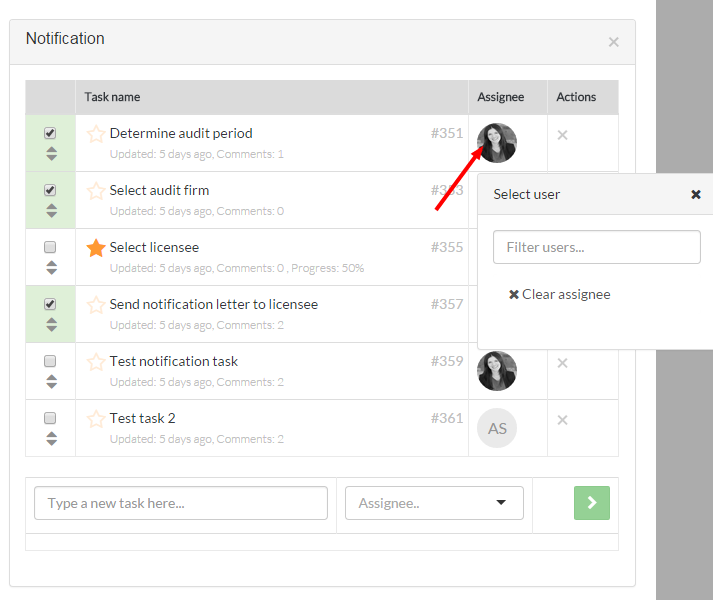
- First method is to click on the Assignee image from the task widget to open up the drop down list, then click the desired user's name to assign the task to them
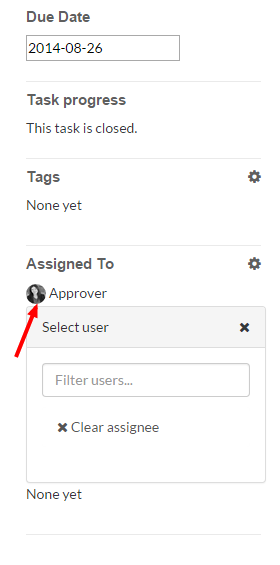
- Second method is to open a task and assign a user from the Assignee toolbox
*For directions on how to add tasks from the project tree view, please visit "How to Edit Projects from the Tree View"
Comments