- Click on the gear icon in the upper right hand corner of your screen
- Click on the first option in the drop-down menu, Manage Account

- On the next page, your current profile information is displayed. You can update your information by editing the data within each field
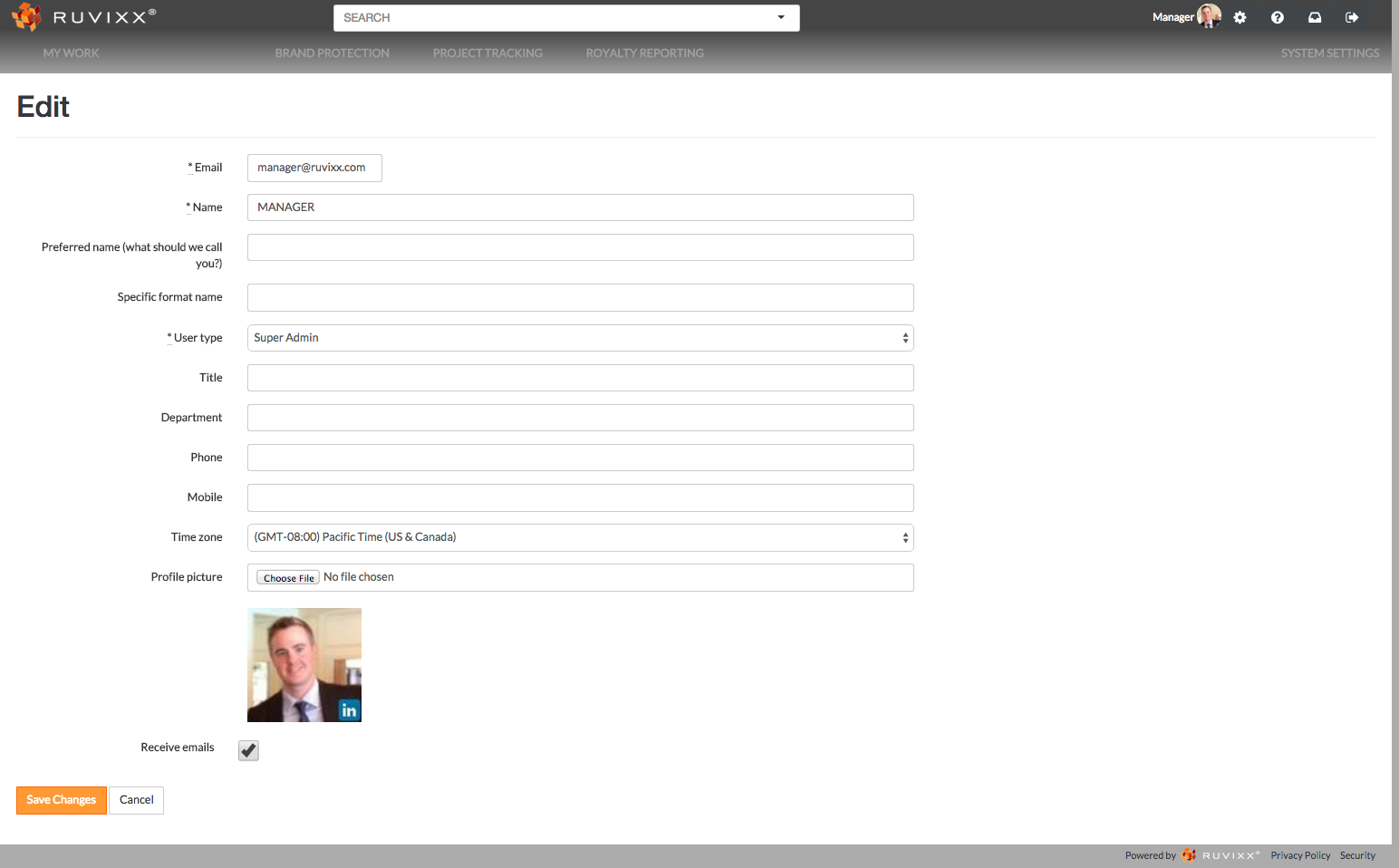
- Check the box next to the ‘Receive emails’ option to allow Ruvixx to send you email notifications on projects, including
- When you are mentioned in a comment
- When someone comments in a task to which you are subscribed
- When someone assigns you a follow-up item
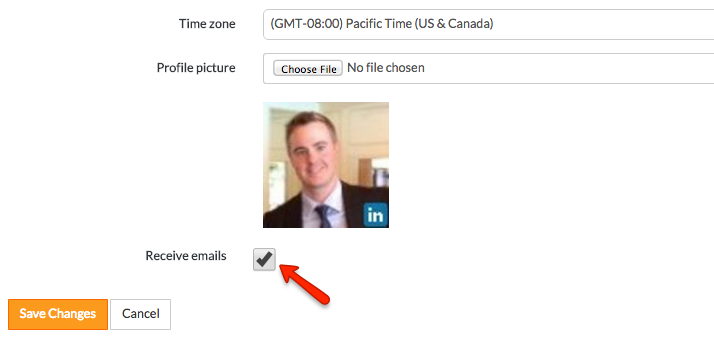
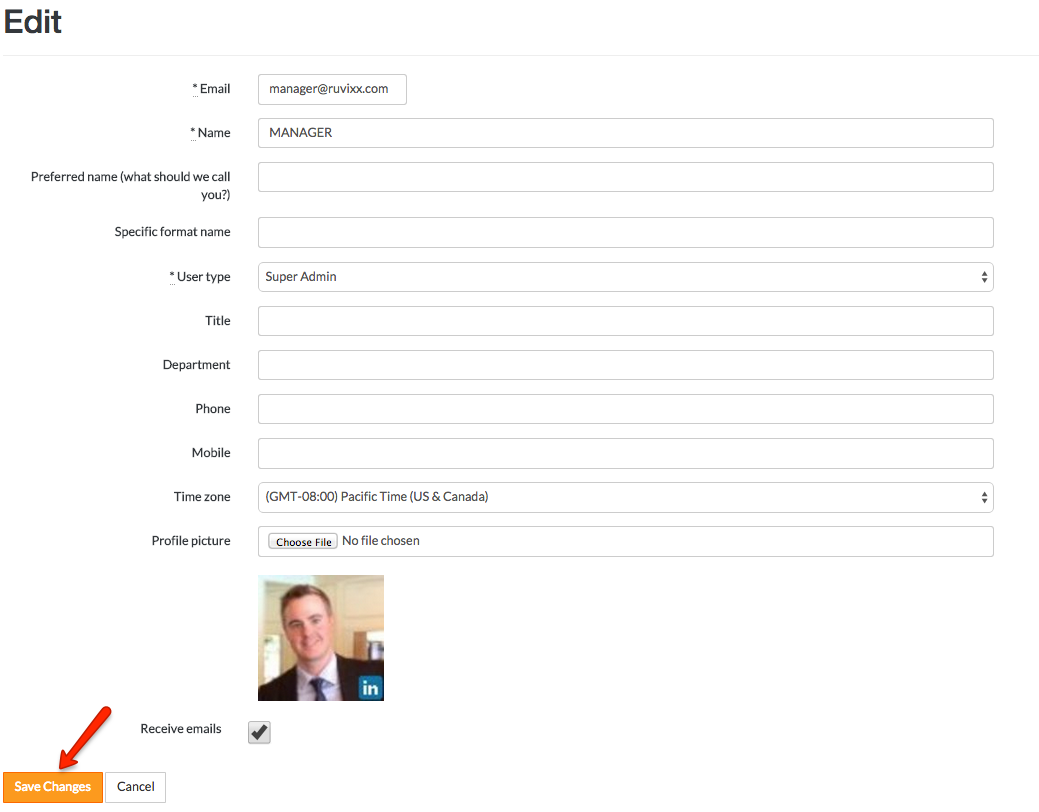
- When you have completed your updates, click the orange Save Changes button on the bottom left of the page to update your profile
Have more questions? Submit a request
Comments