- Select the task in which you want to attach a file
- Scroll to the bottom of the page and locate the Have something to say? prompt
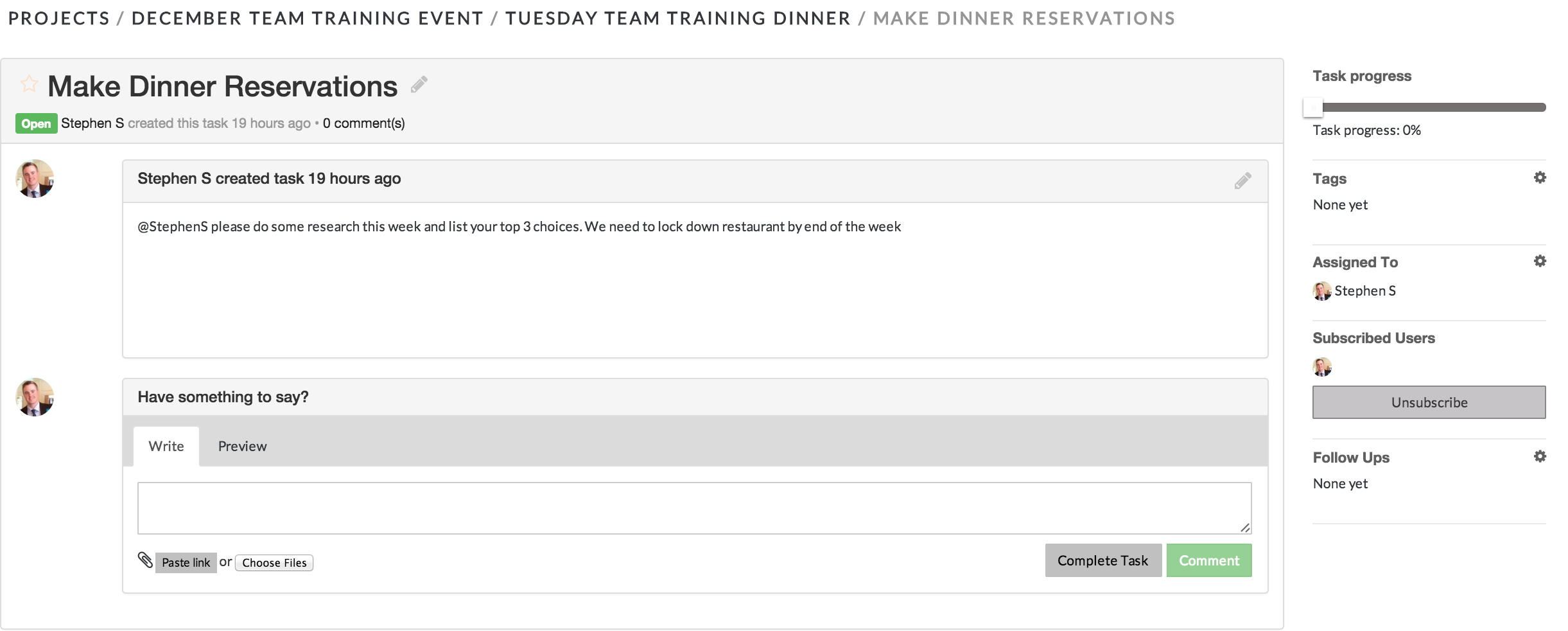
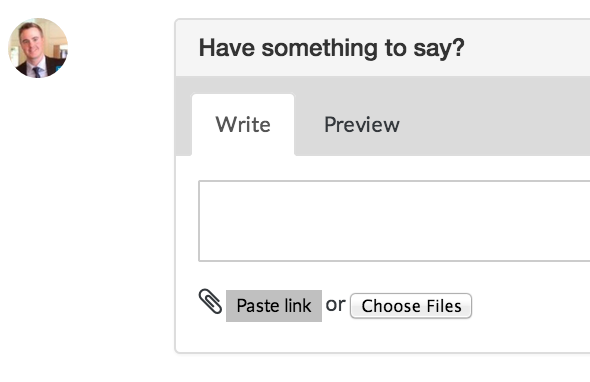
- Click on the Choose Files button. This will launch a window where you can select the file
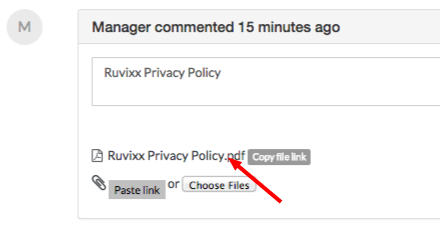
- After you have selected your file, it will display under the text box. You can click the file name to review your file or write a comment about the file in the text box
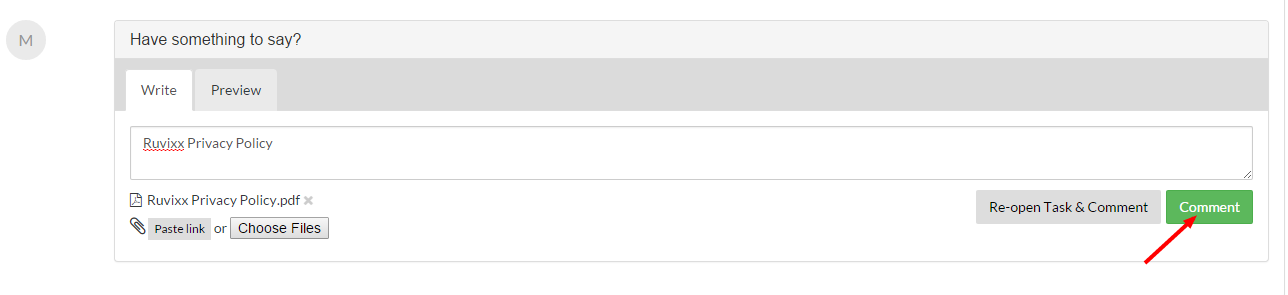
- Once you have attached your file, you can post it by clicking Comment
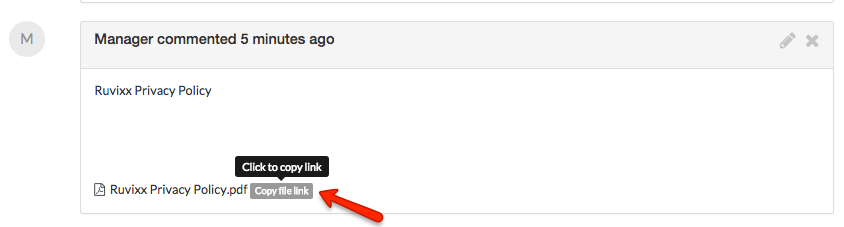
- To Share the file, click on the Copy File Link located to the right of the file link
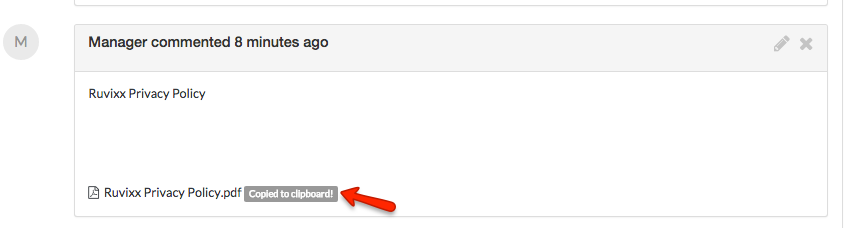
- A message will briefly appear indicating that your link has been "Copied to clipboard!" (similar function as hitting CTRL + C on Windows or Command (⌘) + C on a Mac)
- You can now paste the link to your desired location (CTRL + V on Windows or Command (⌘) + V on a Mac)
*Alternatively, you can post your attachment and close the task in one step by clicking Complete Task
Comments