To add flag(s) – either for each entity separately or multiple entities with the identical flag (only):
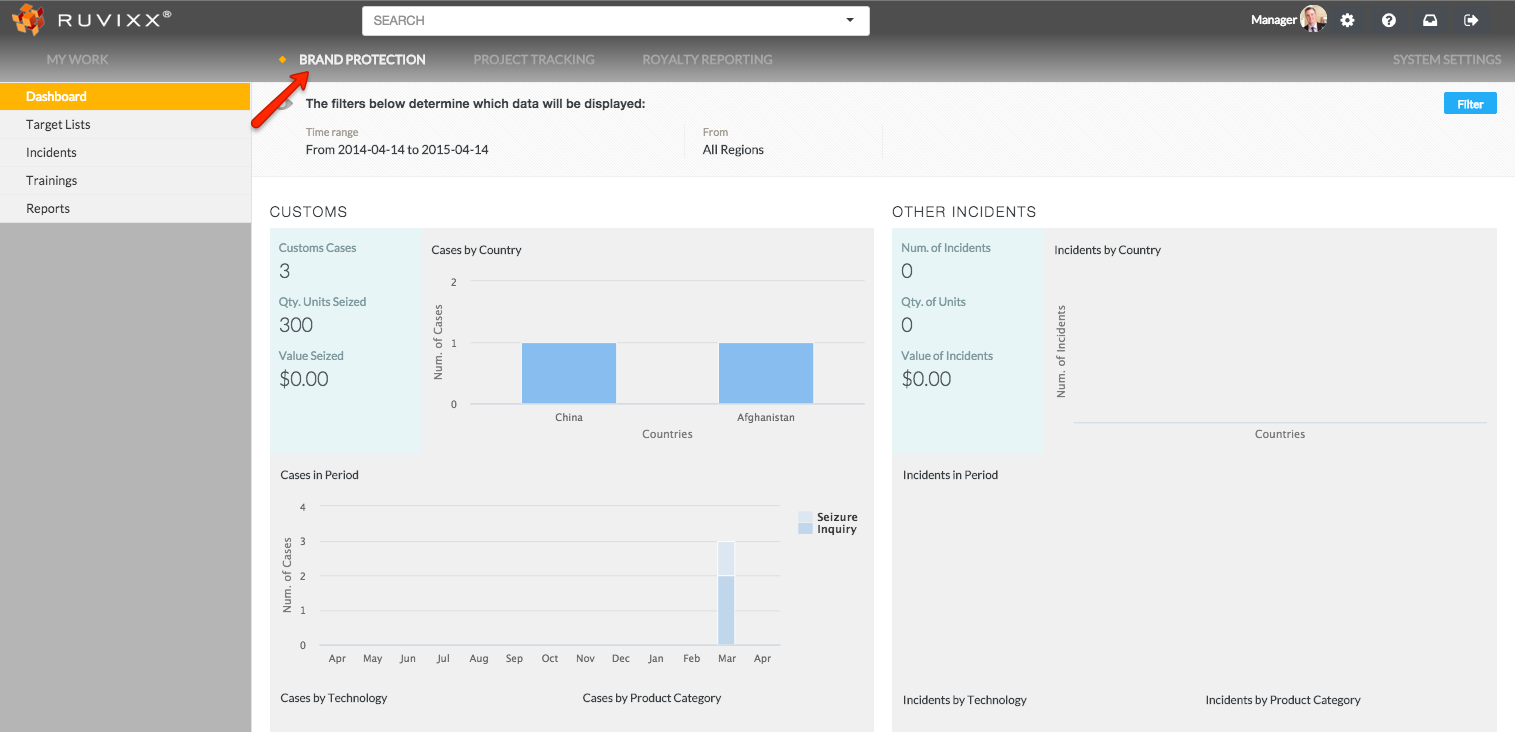
- Click the Brand Protection button on top menu bar
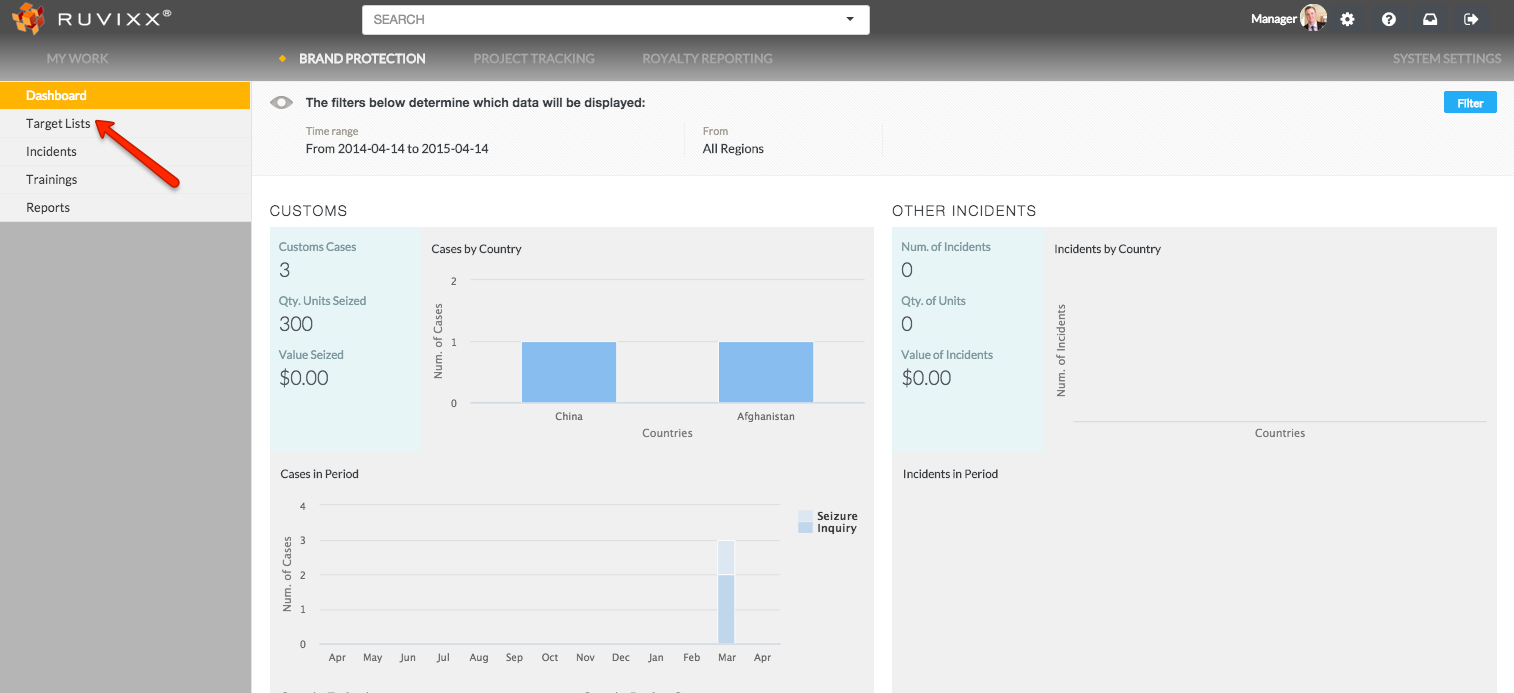
- Click on Target Lists on the left hand navigation pane
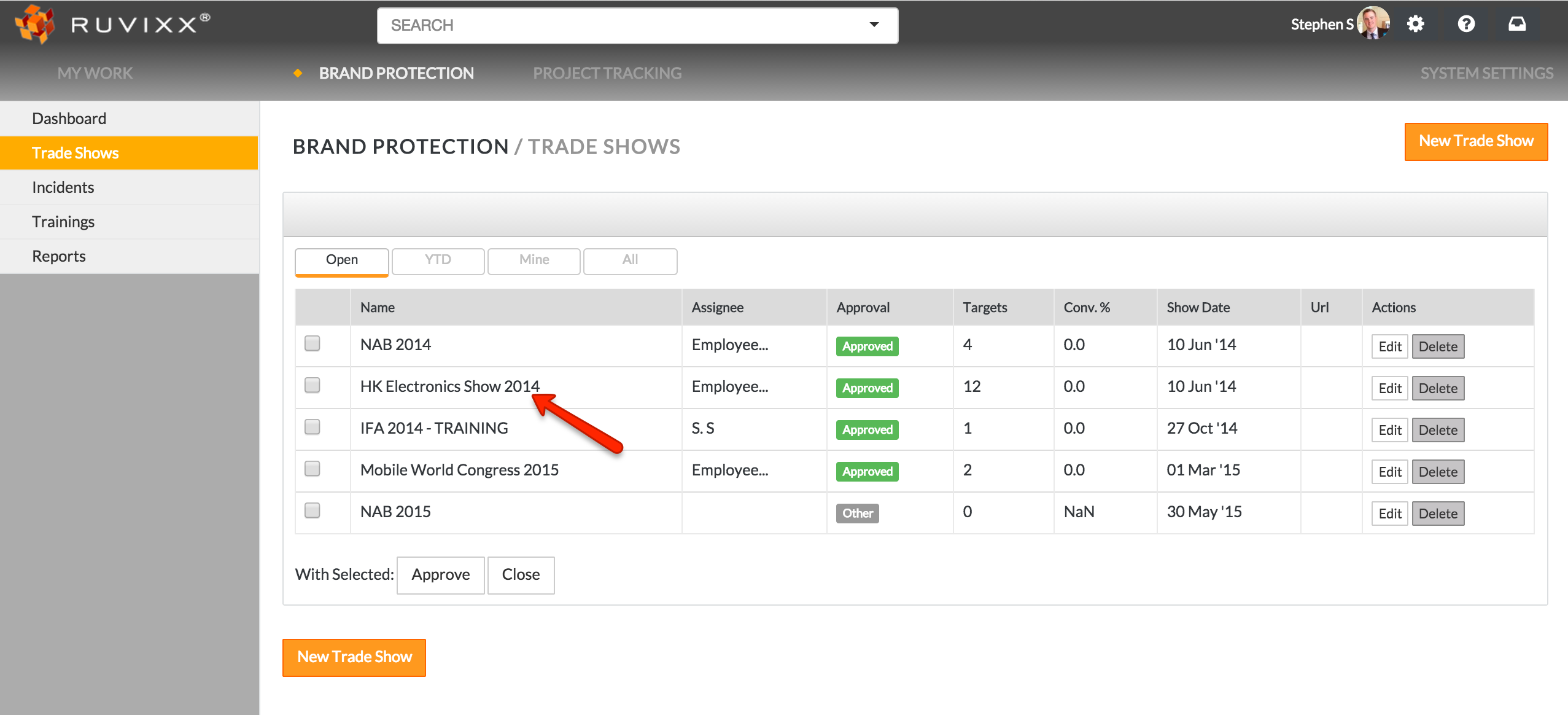
- Click on a specific trade show
- Select the entity(-ies) by checking the box on left hand side of entity's name
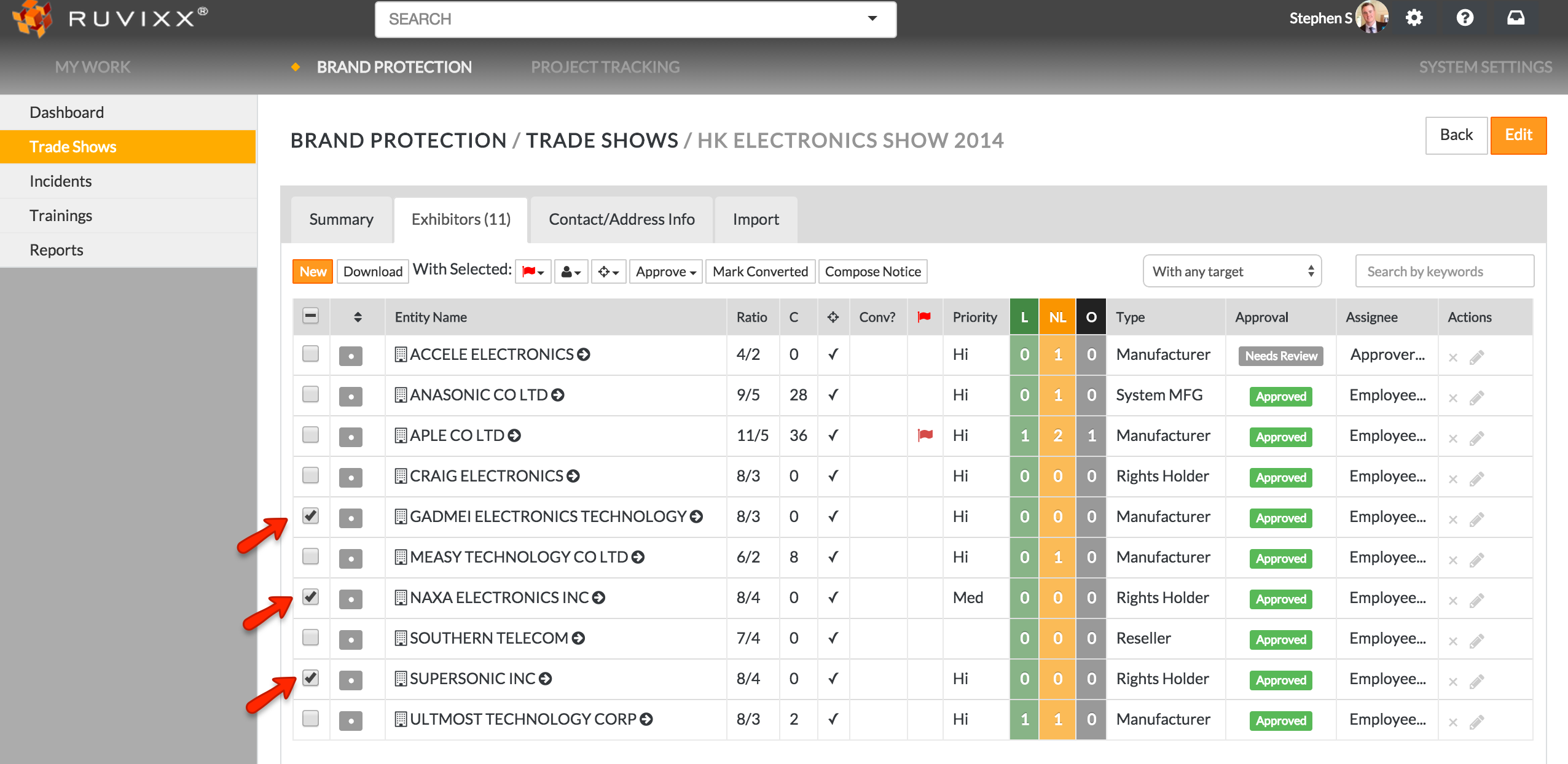
- Click “Manage Flags” (the drop down Flag icon menu)
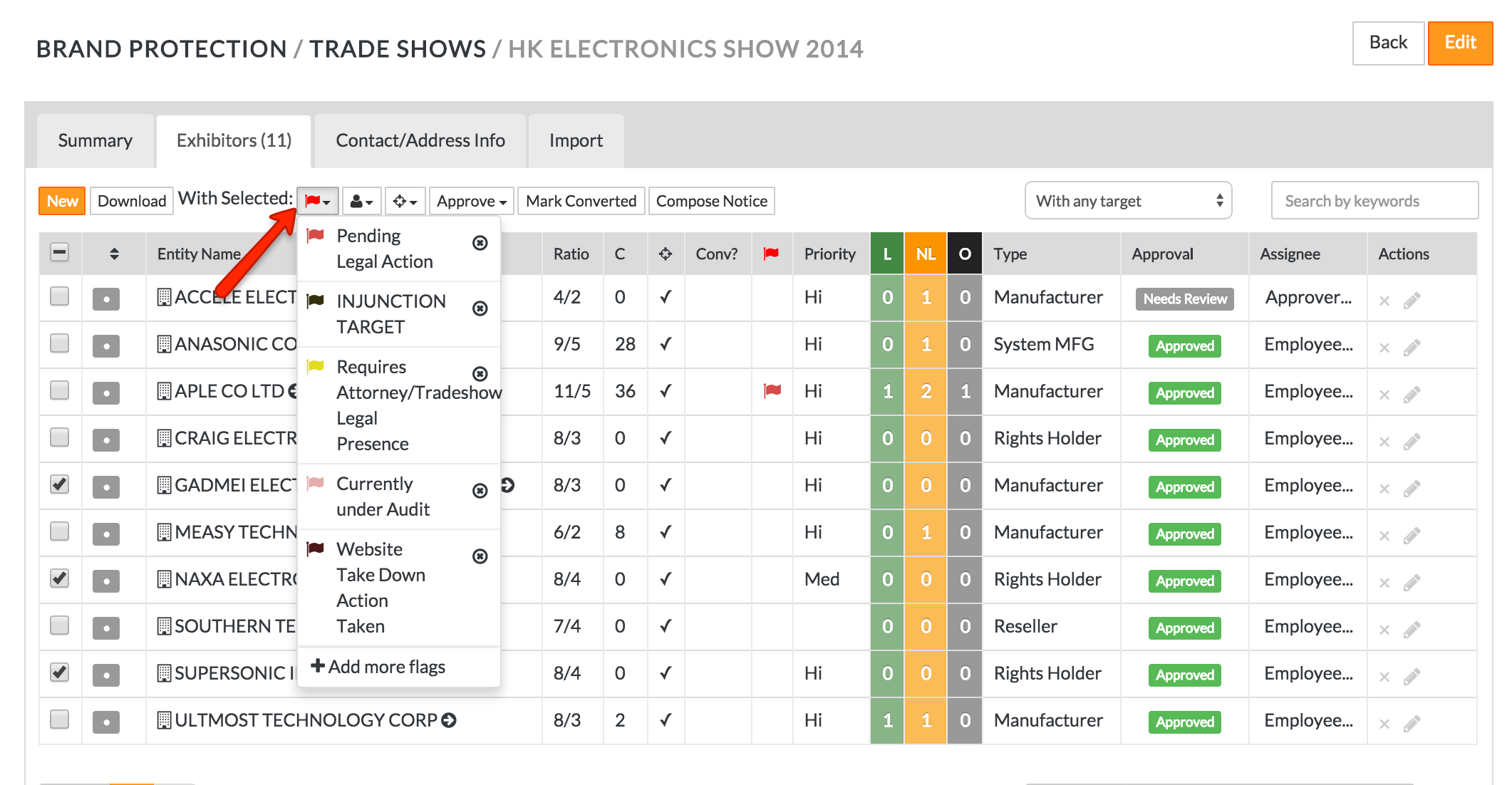
- In the drop down menu click on the flag you want to add
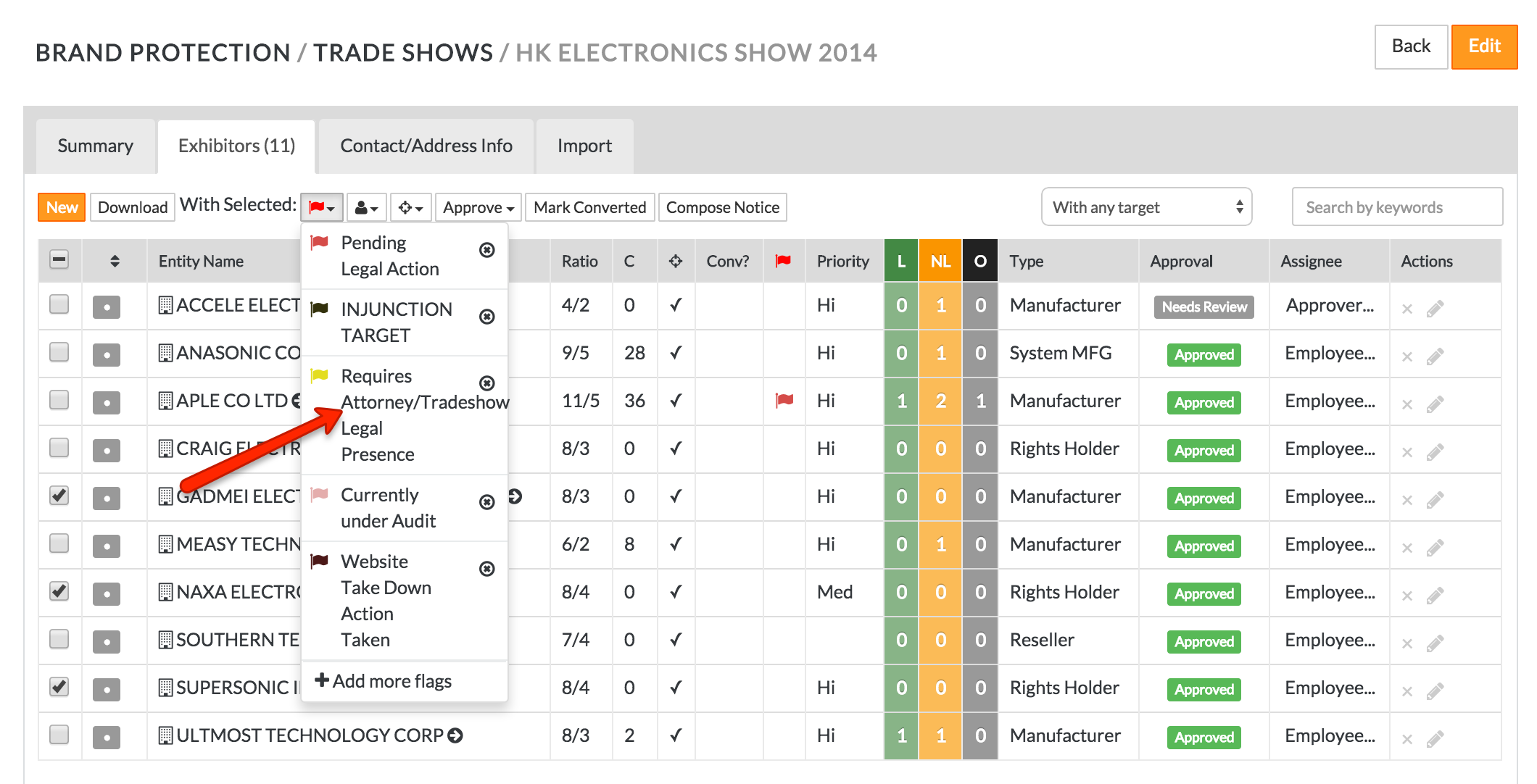
- The selected entity(-ies) will have the flag added and list will be automatically refreshed.
- Repeat steps 1-5 for separate entities requiring different flags
To remove flags – either for each entity separately or multiple entities with the identical flag (only):
- Select the entity(-ies) with flags you wish to remove by checking the box on left hand side of exhibitor's name (only select the entity(-ies) that have the same flag)
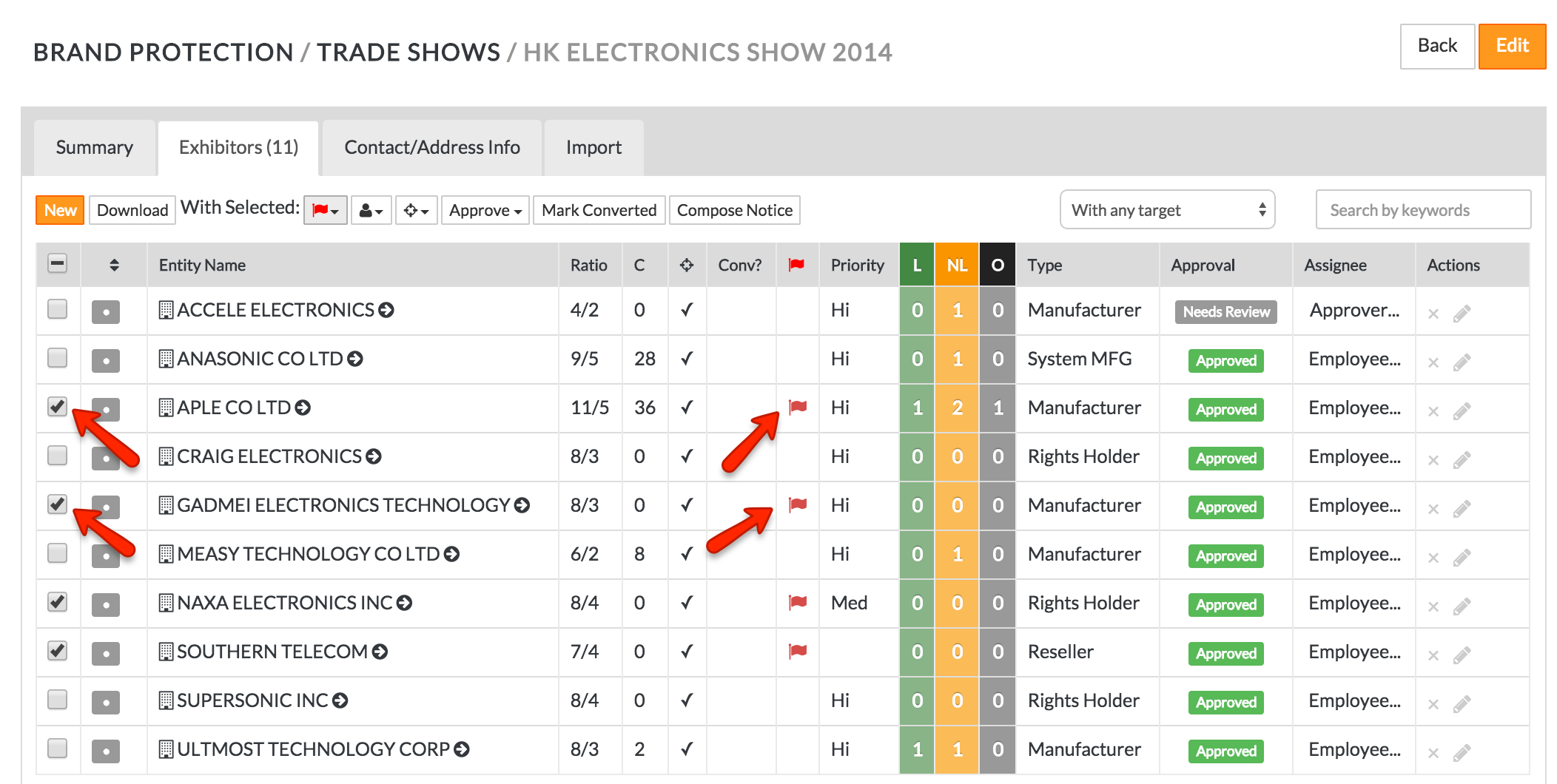
- Click “Manage Flags” (the drop down Flag icon menu)
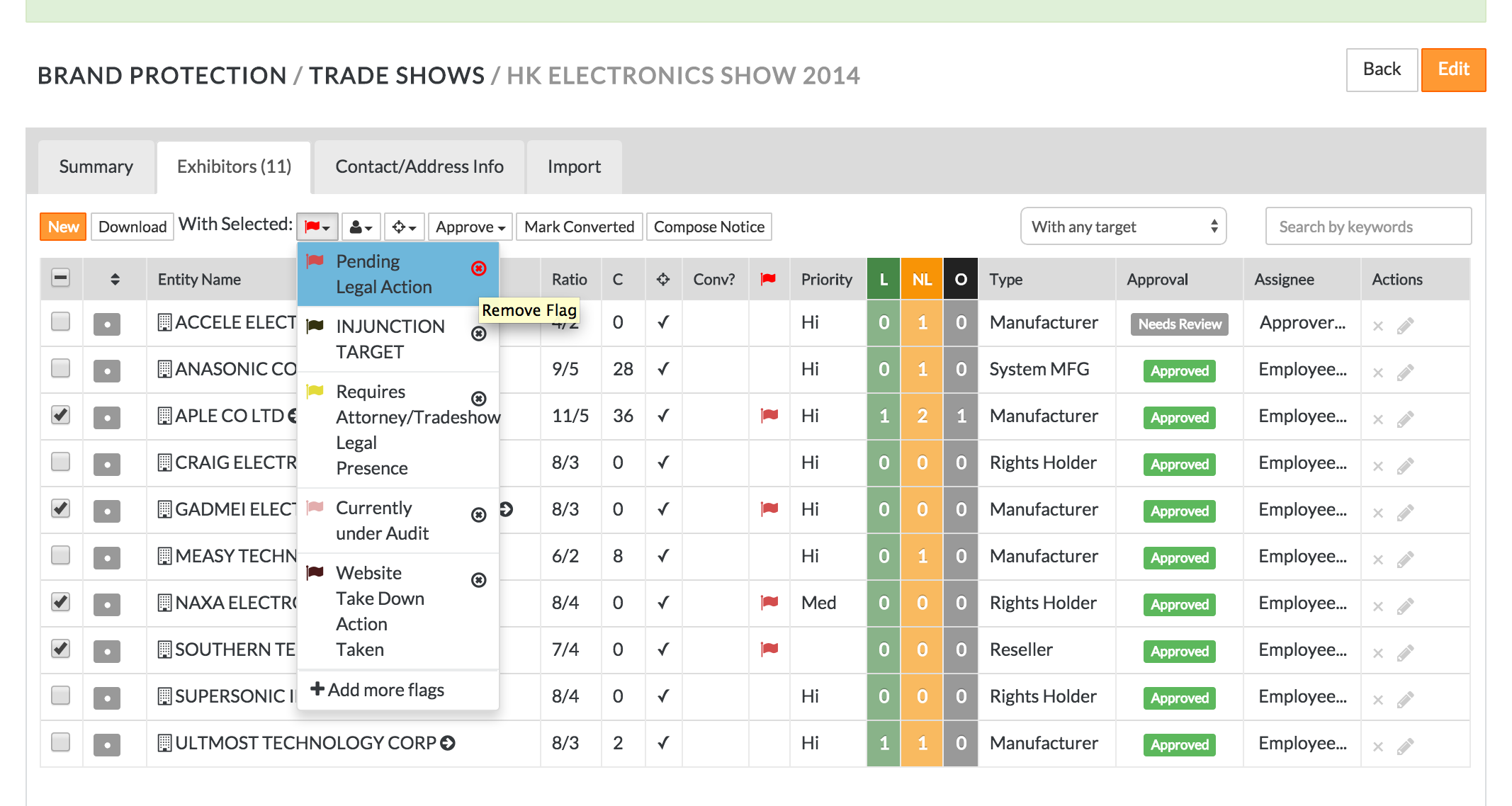
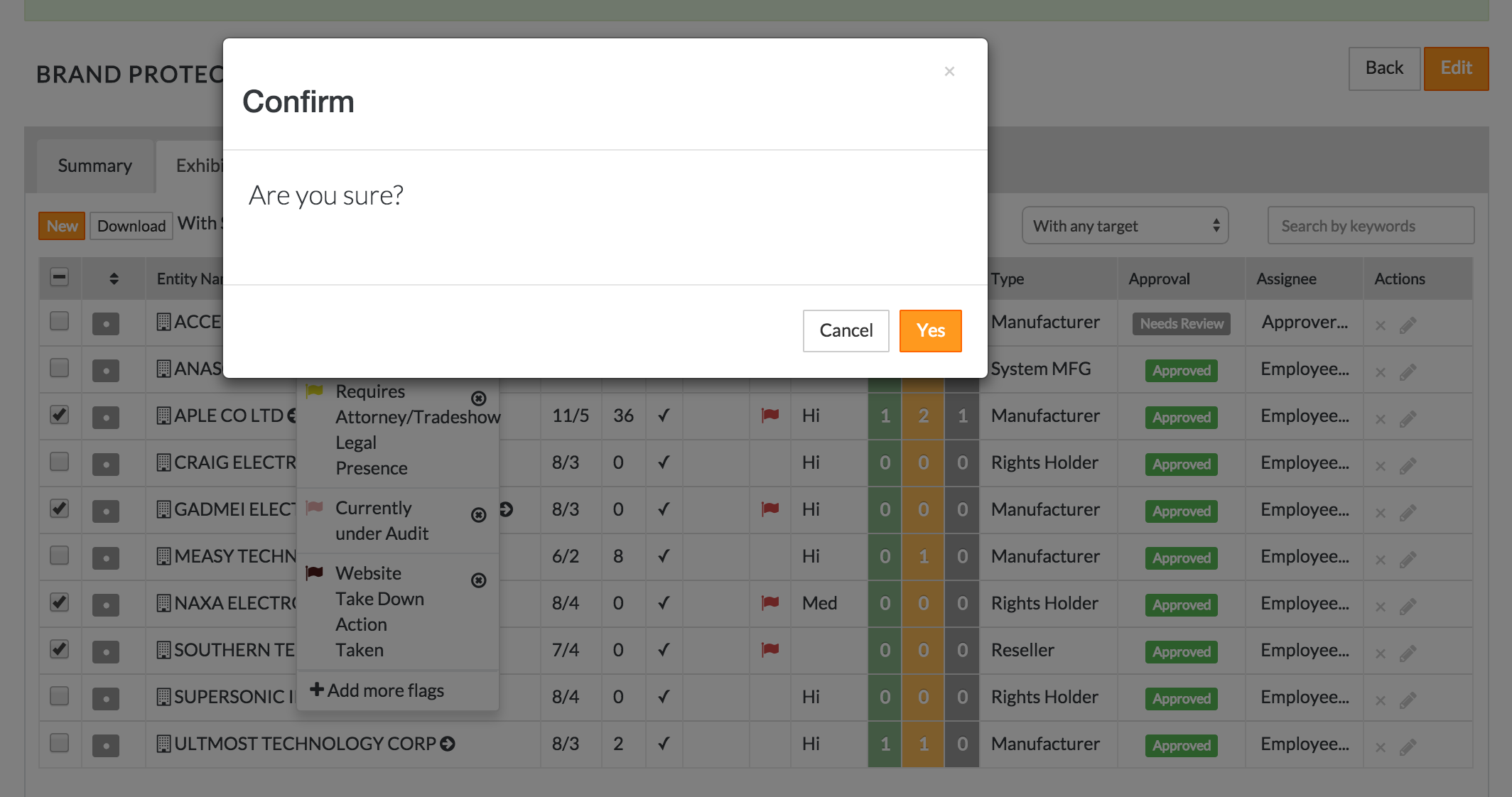
- In the drop down menu – click on the circled "x" on the right hand side of each flag (When you point on it – the “remove Flag” hovers over)
- Click on the orange Yes button
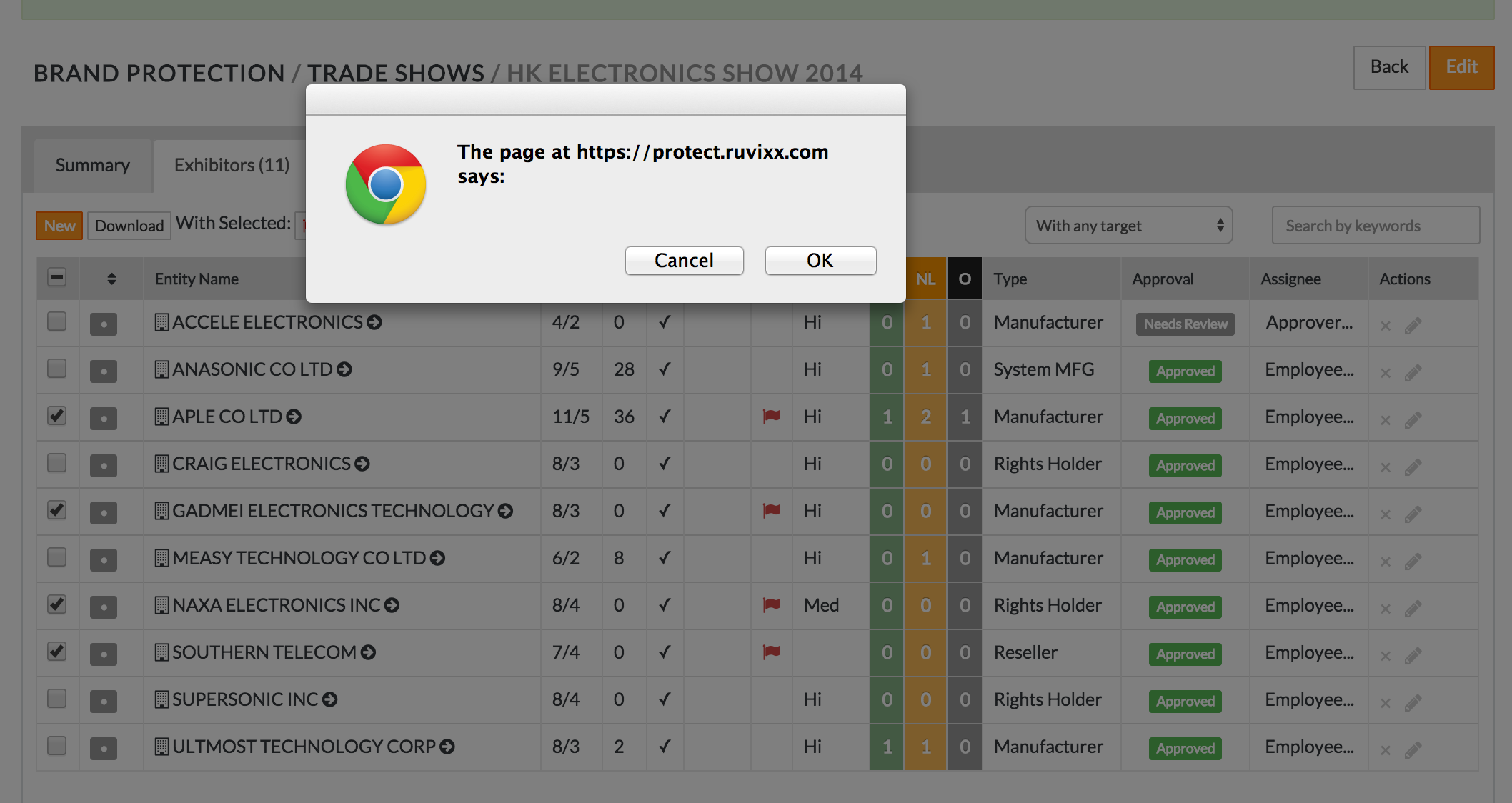
- Click on the OK button
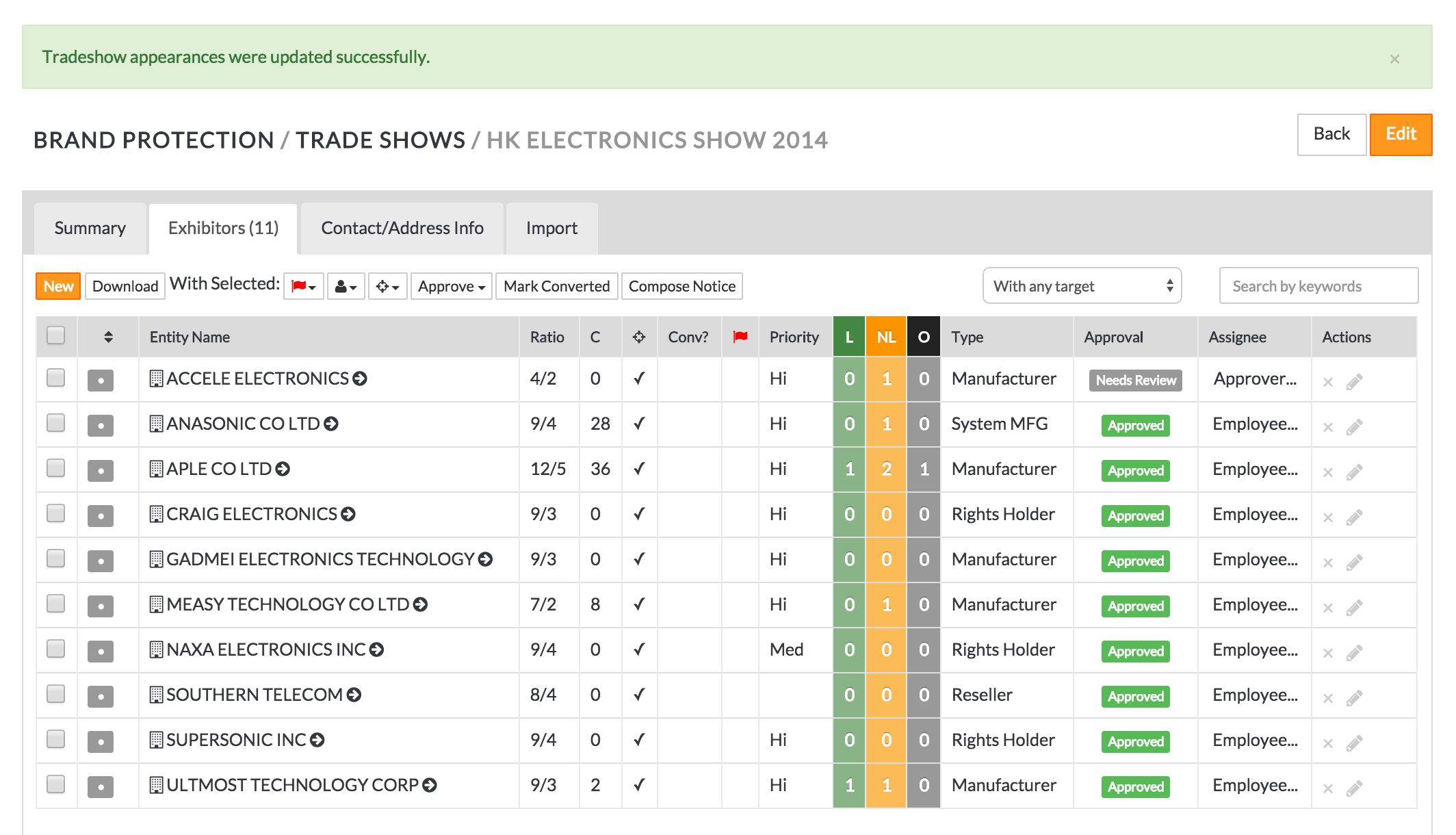
- The flags you marked will now be cleared from the pre-selected entities
Comments