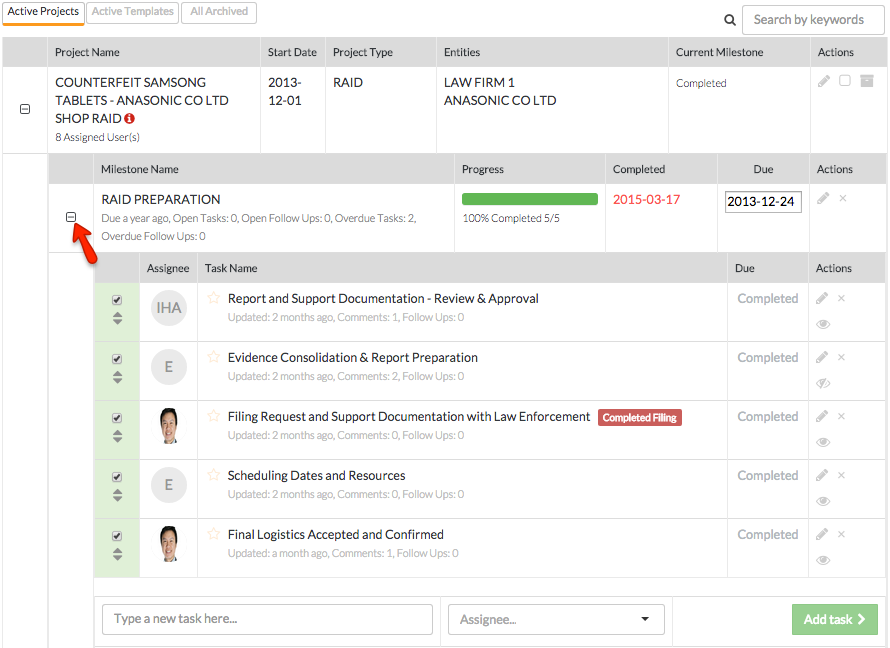
The project tree view is available from the projects overview page. The tree view functions described below will help expedite your work flow, helping you to quickly find and edit your milestones and tasks. See below for the following topics:
- Expanding and updating milestones
- Expanding and updating tasks
- Adding a task from the project tree view
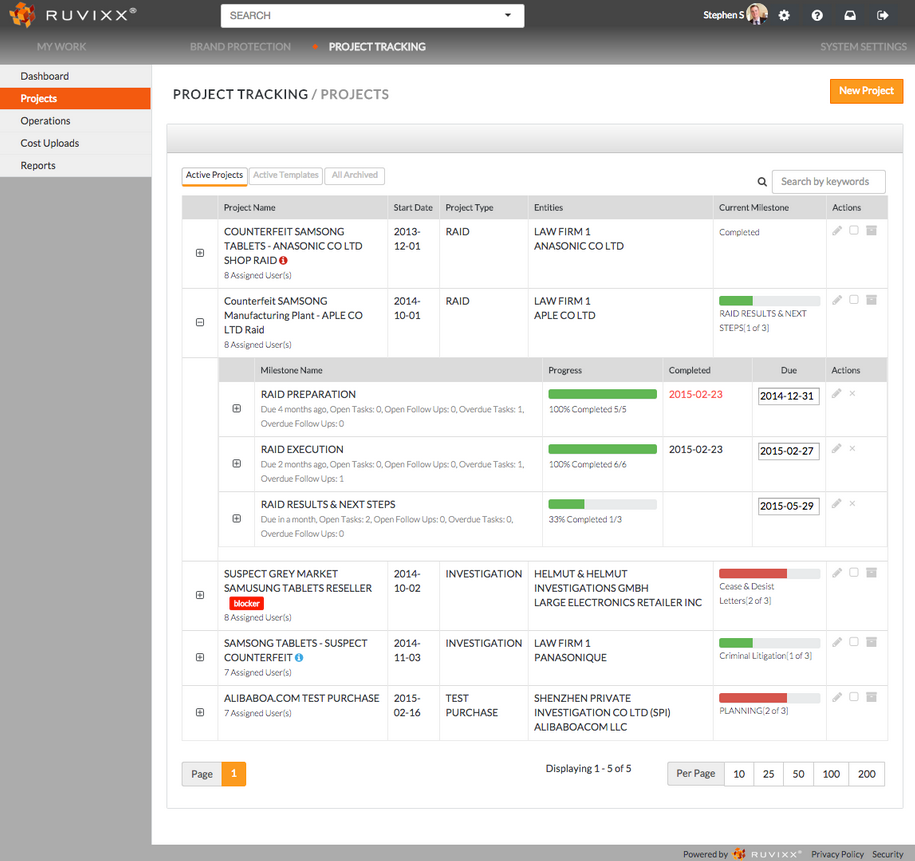
Expanding and updating milestones
- Click on the "
 " image to the left of the specific project to expand all milestones related to that project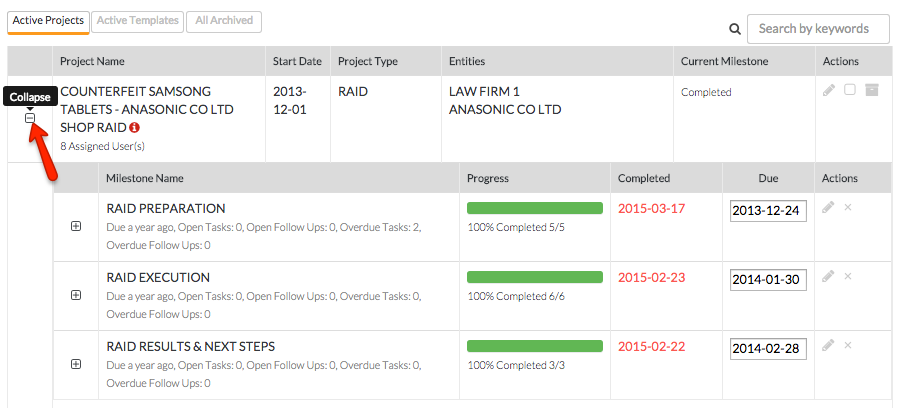
- Use the buttons on the right of the milestone to make quick edits to your milestones
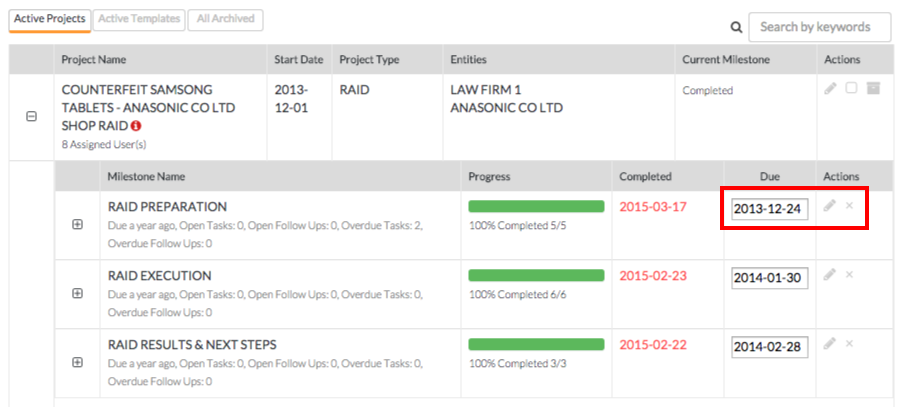
- Click the
 date button to change due date
 - Click the "
 " button next to the pencil button to delete the current milestone
 - Click the "
 " pencil button to visit the milestone edit screen where you can mark the milestone as internal (which will render milestones visible only to internal users), select a project phase, edit milestone name, and enter in milestone budget hours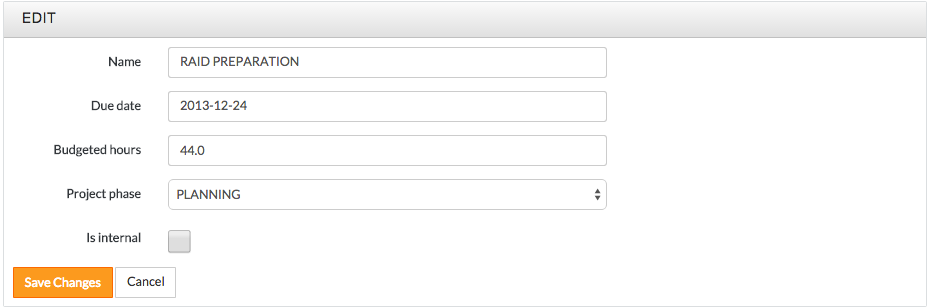
Expanding and updating tasks
- In order to view tasks associated with a particular milestone, click the "" image next to the associated milestone to expand all tasks
- Use the buttons on the left and right side of the task to edit tasks
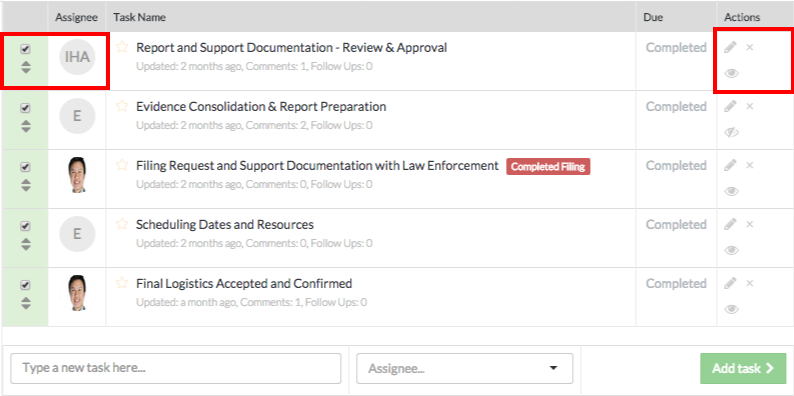
- Click on the "
 " check mark to close and open tasks from the project tree view
 - Click on the
 "Assignee" button to change assignee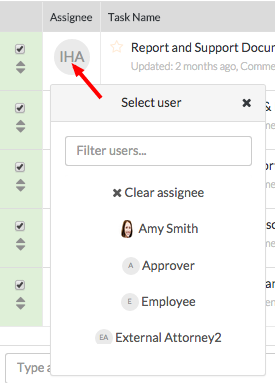
- Click the "" pencil button to visit the task edit screen
- Click the "" button next to the pencil button to delete the current task
- Click on the "
 "button to subscribe to the specified task. The icon will change to "
 " which signifies you are subscribed to the task. Reversing this step will unsubscribe you to the task
 - Click on the "star" button next to the task name to mark it as important

Adding a task from the project tree view
- With the project task expanded, type the task name into the "Type new task here...." bar at the bottom of the tree view, assign a user, and click the
 button to complete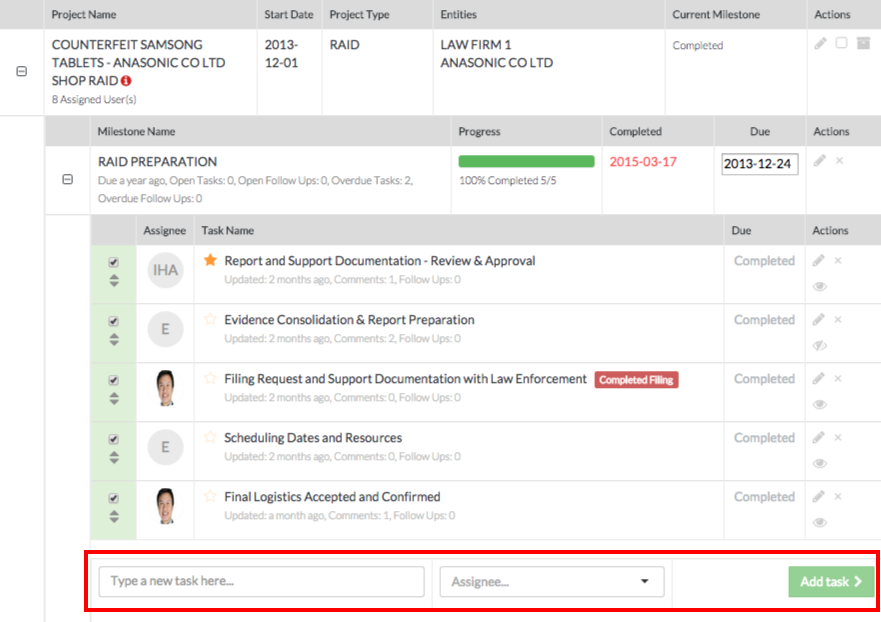
Comments