Milestones are a sub-level category that are created within a Project. Milestones can have deadline dates as well as the option to label it a project phase. (for more information on project phases visit our section on "How to Create/Edit Phases"
For example, you created a project called "December Team Training Event", you could create multiple Milestones to help plan out the training event. Some Milestones could potentially be: "Tuesday Training Seminar" or "Tuesday Night Team Dinner". These Milestones would all be a sub-level category within the Project to help track the overall progress of completion.
*Tasks can also be created to track to overall progress of a milestone. For more information on how to create tasks, visit our section on "Adding/Editing/Assigning Tasks"
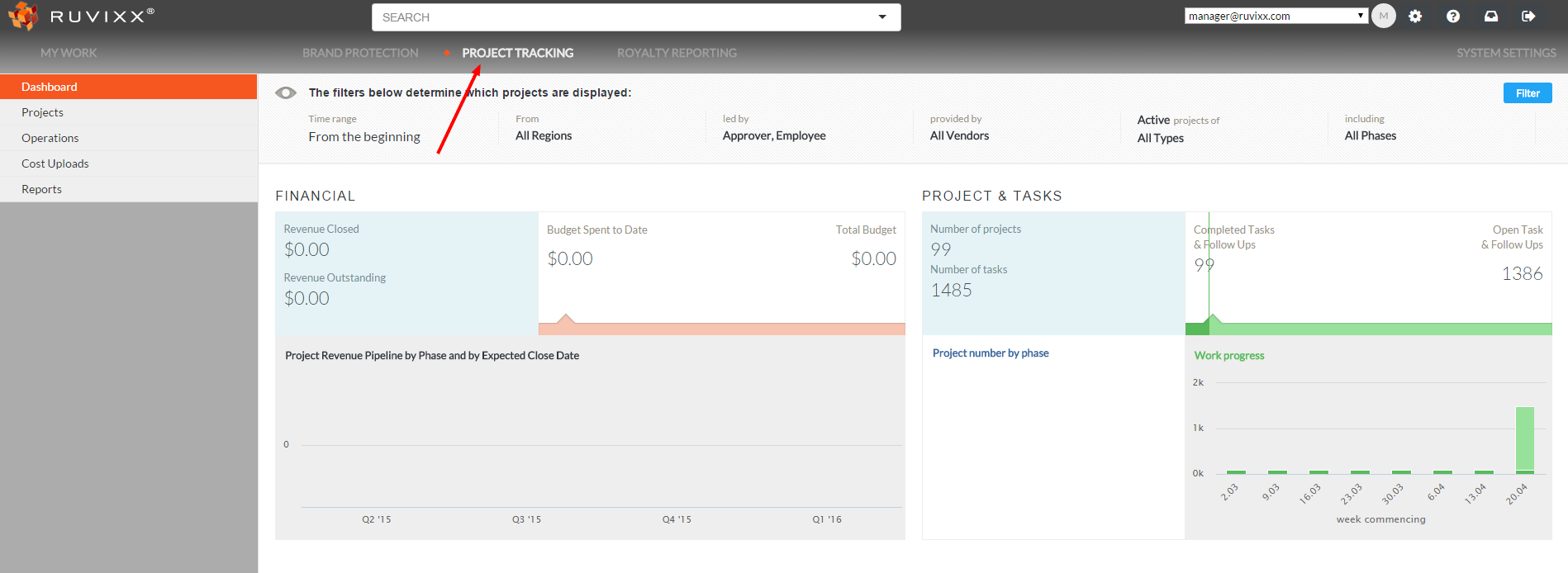
- Click on Project Tracking
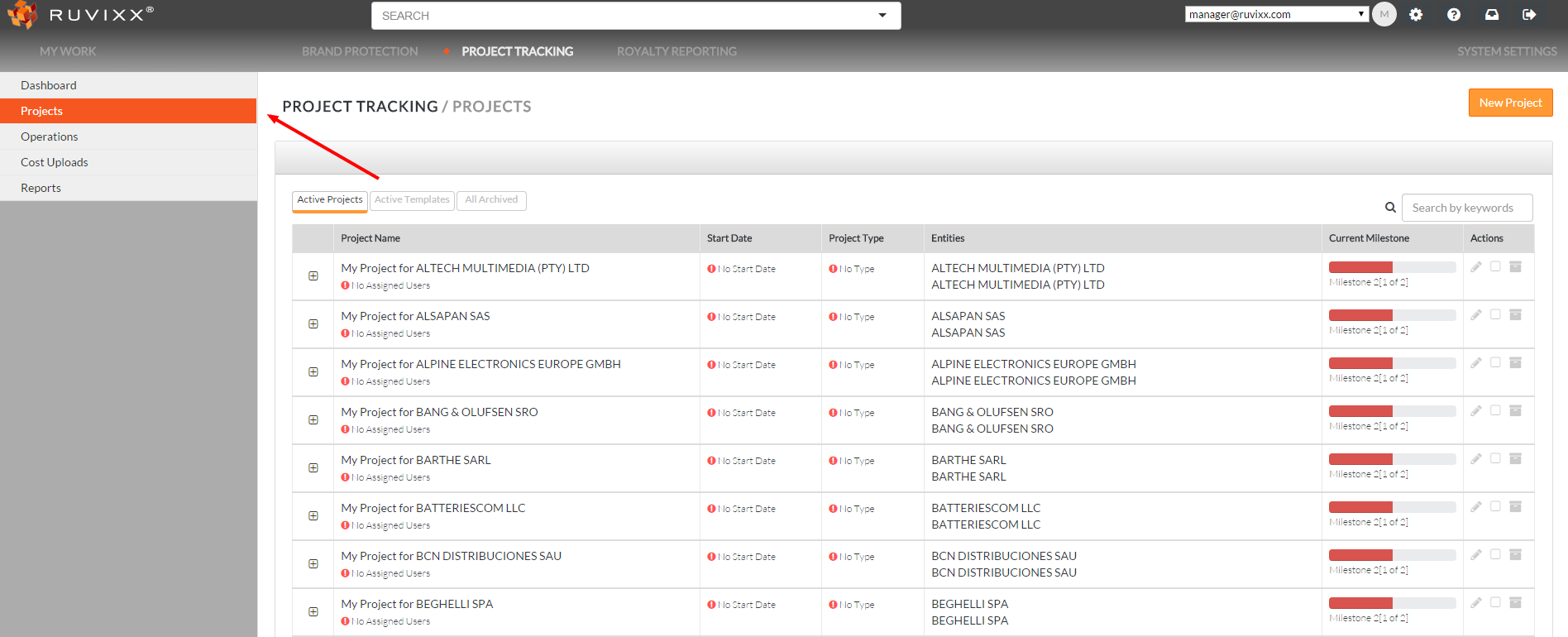
- Click on Projects from the left hand side navigation pane
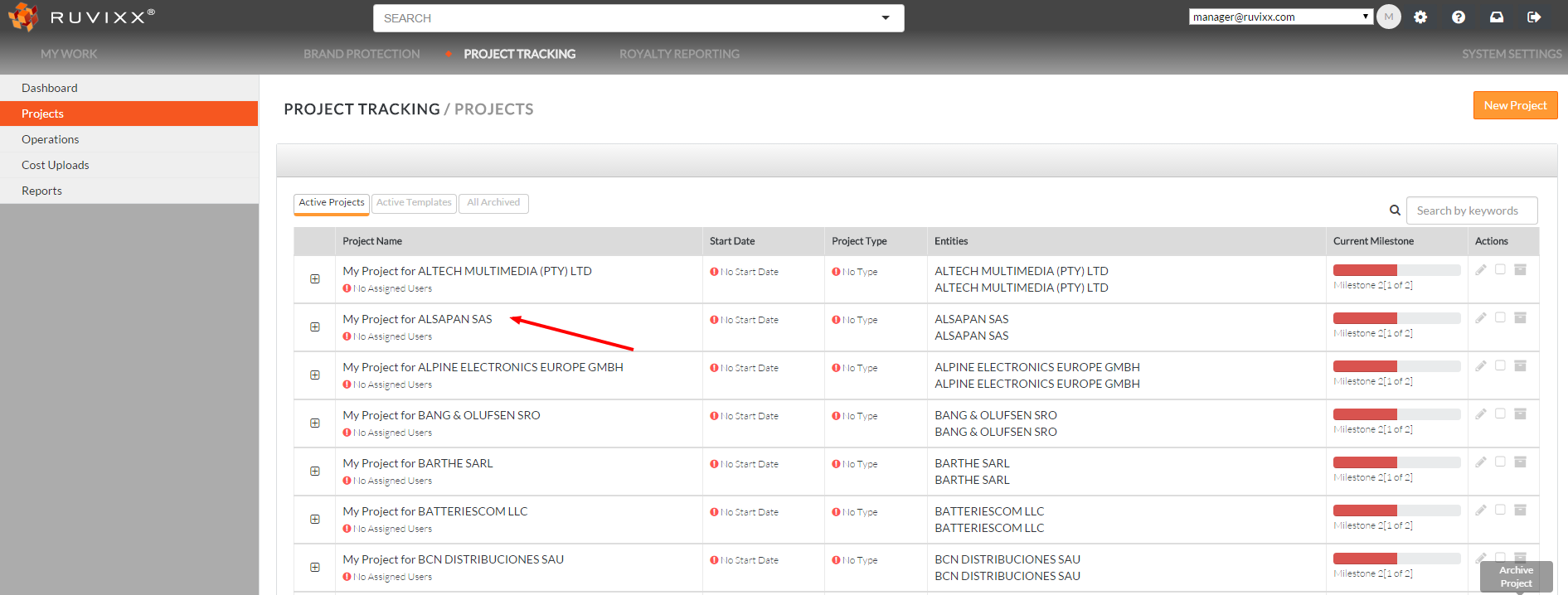
- Click to open the specific Project you wish to create a Milestone for
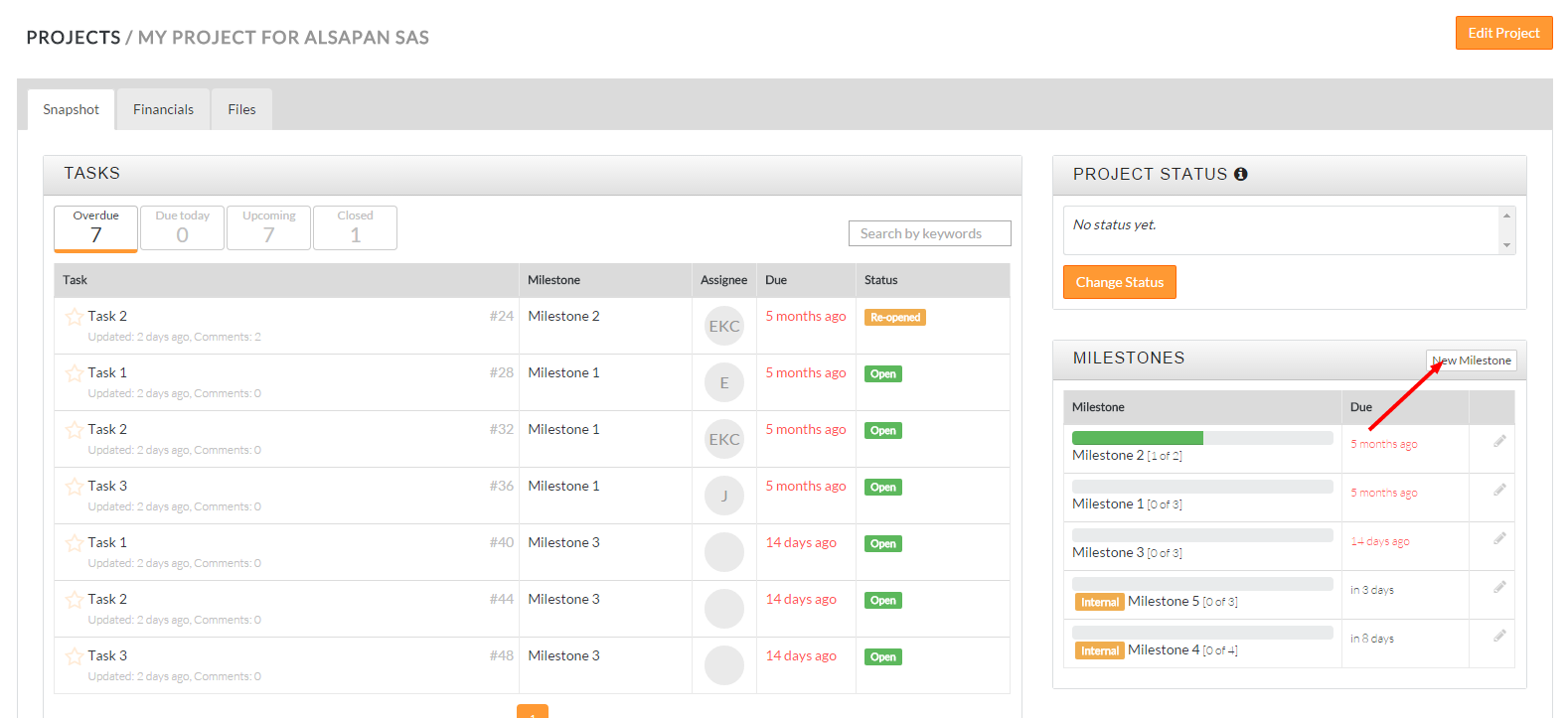
- Click the New Milestone button located at the top right of the Milestone widget
- Fill out the necessary milestone details (name, due date, budgeted hours, and project phase.)
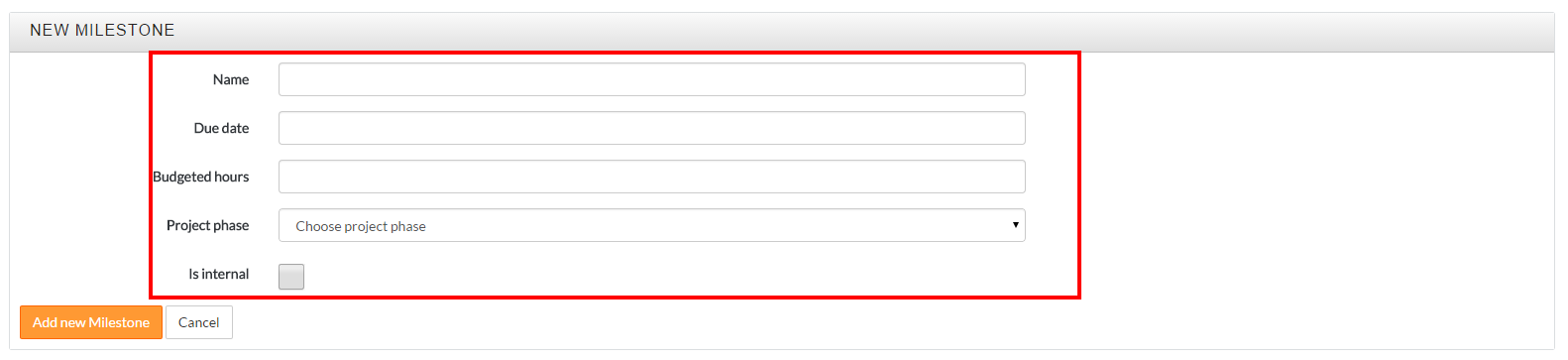 *select "Is Internal" if you wish to keep the milestone private from external users. For more information on project phases, visit our section on How to Create/Edit Phases
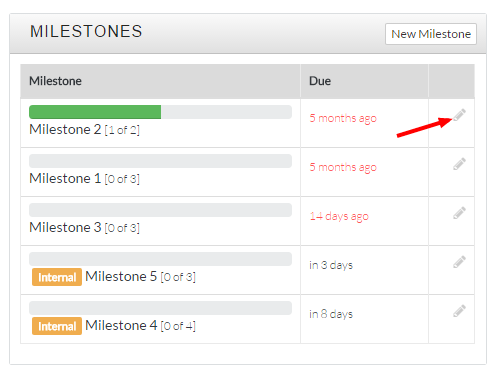
 - To Edit Milestones, click the Edit icon (pencil sign) to the right of the Milestone you wish to edit
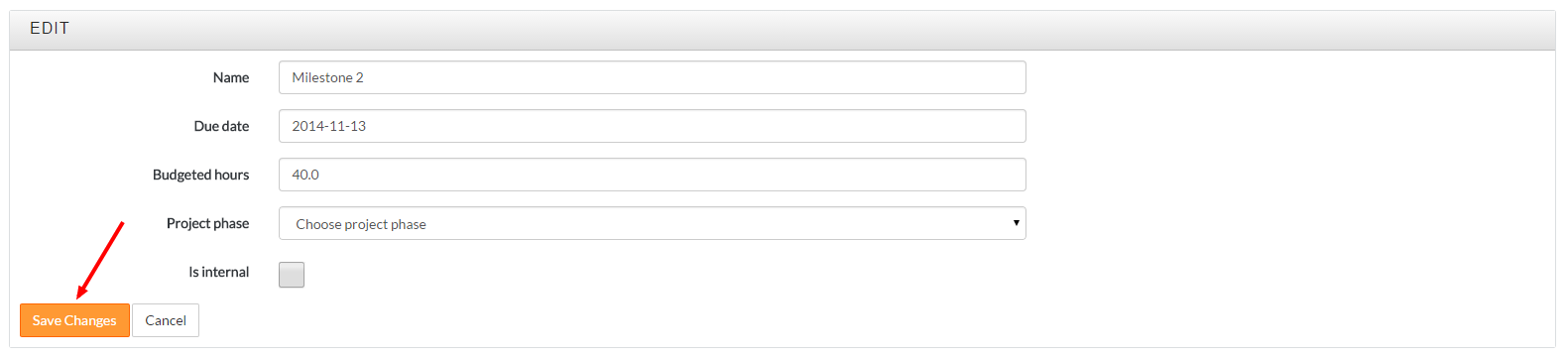
- Click the orange Save Changes button once you have completed all necessary changes
*Milestones are listed in chronological order based on completion due date
Comments