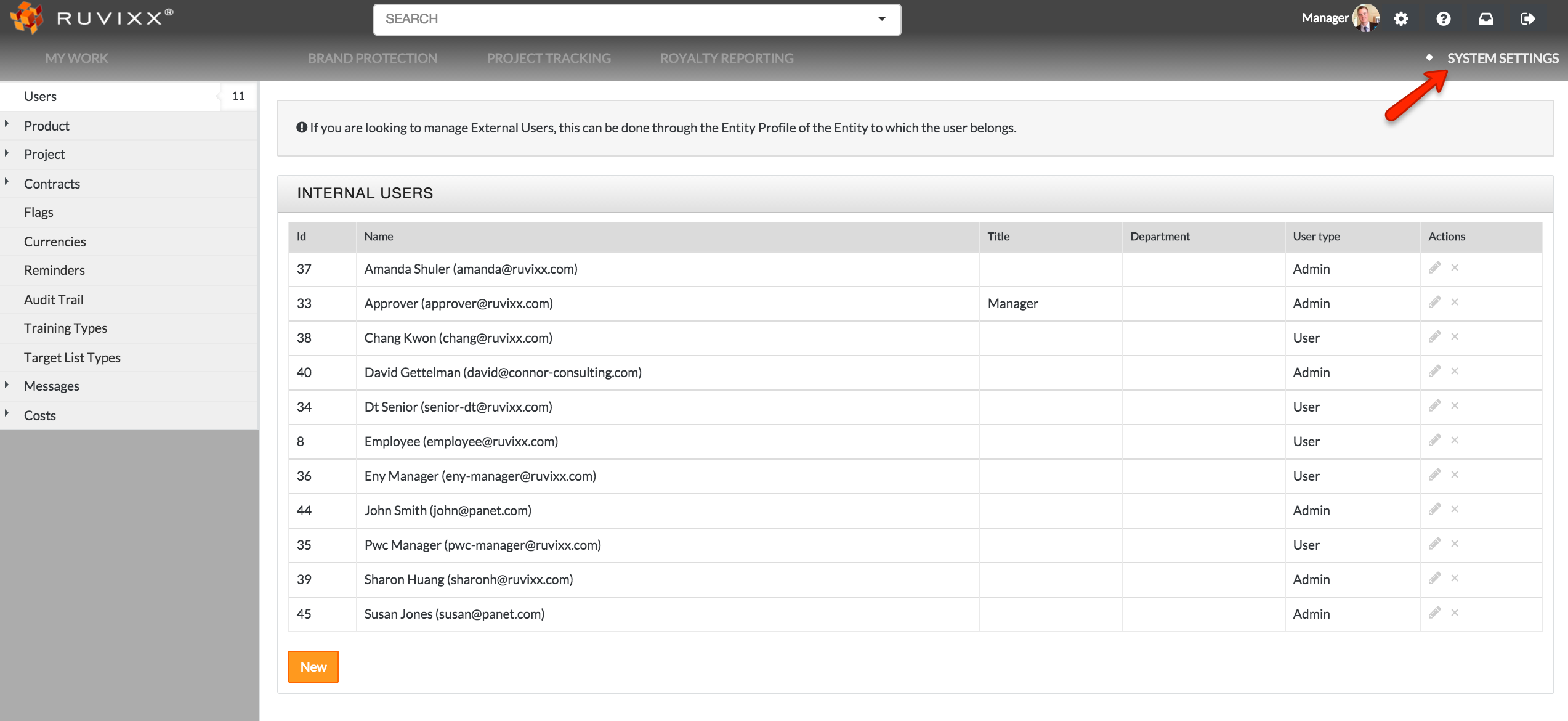
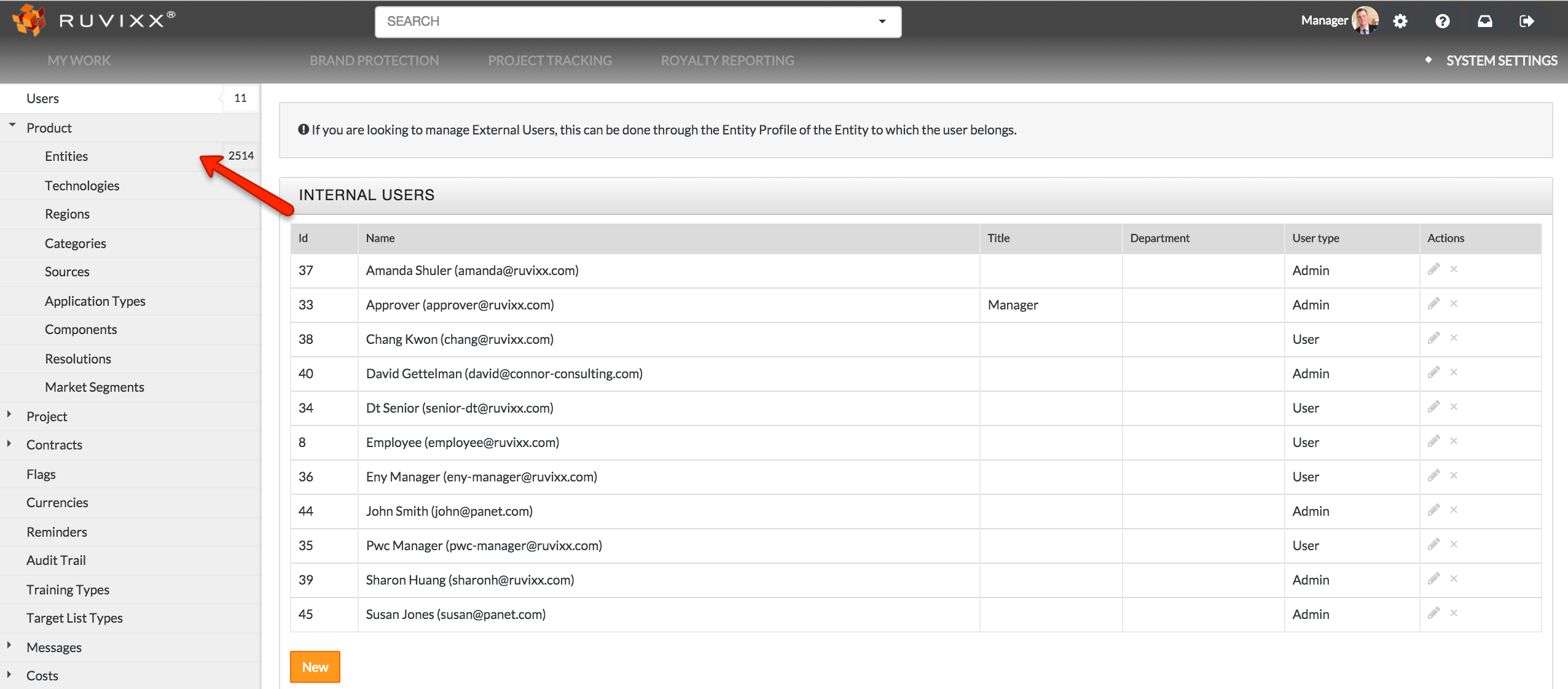
- Click the System Settings on the top right hand corner and select Entities located under the Product category on left hand side
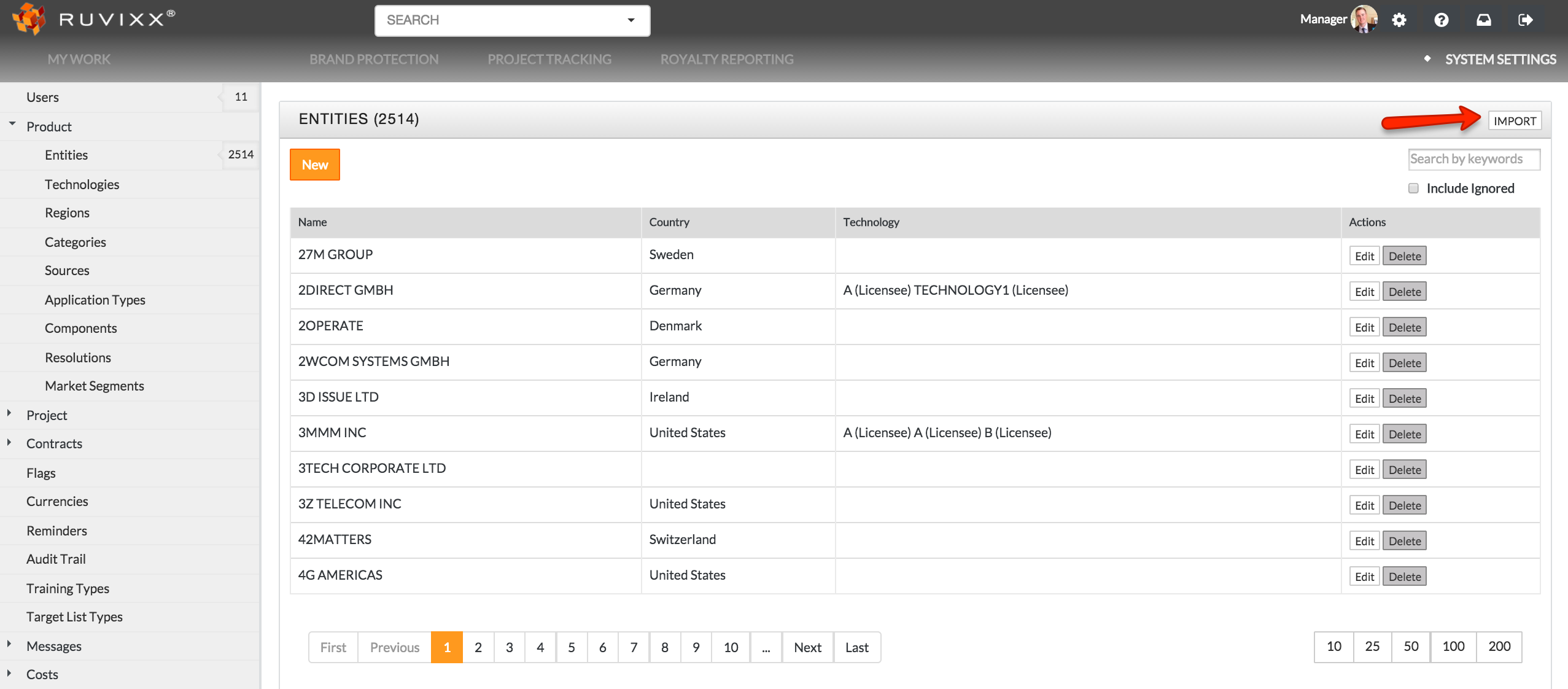
- Click Import on the top right hand side of the screen
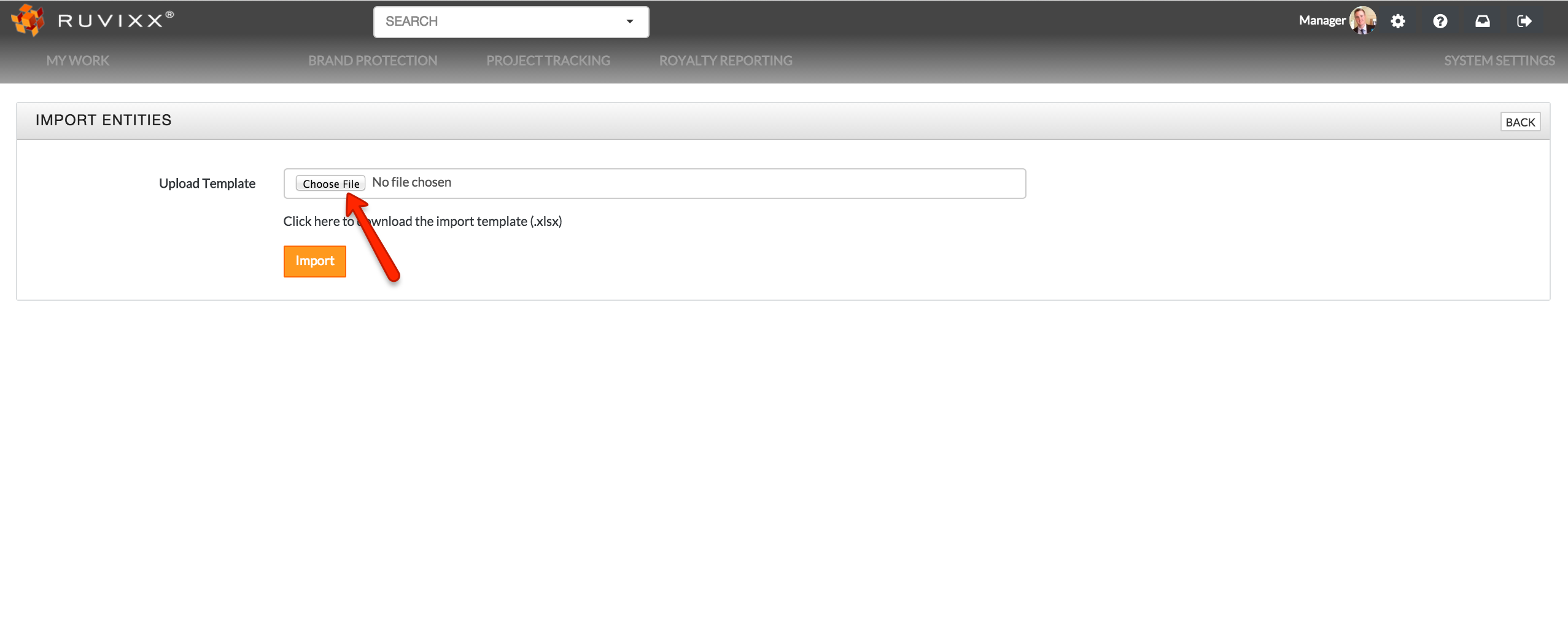
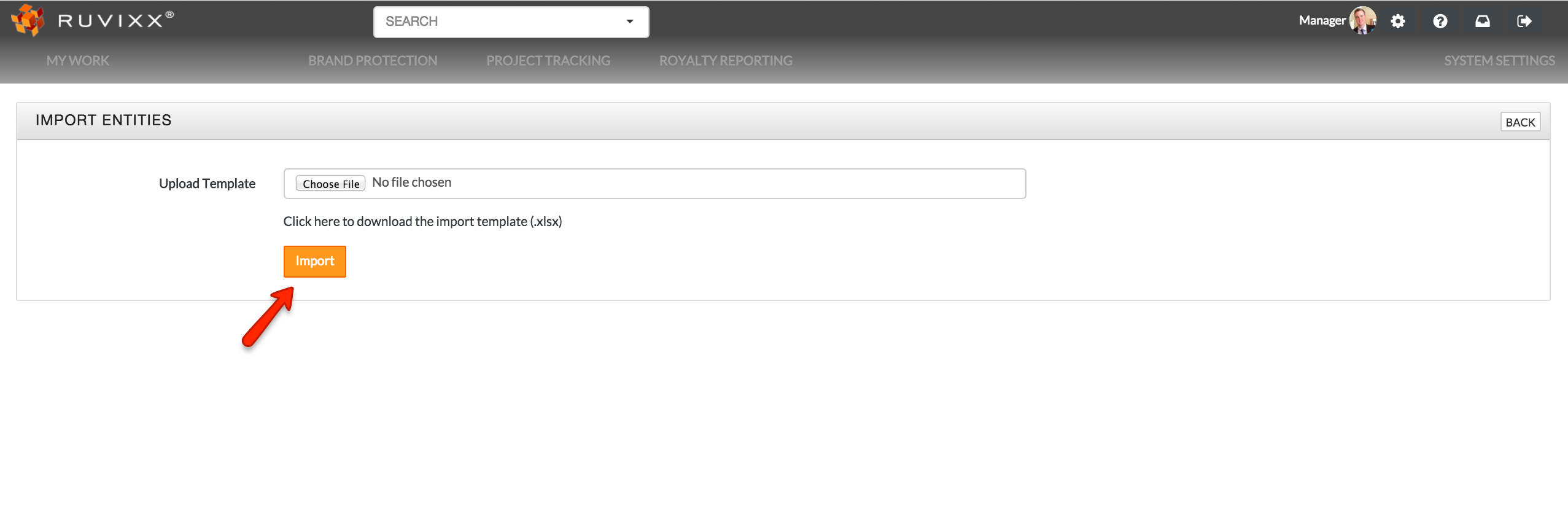
- Click Choose File and select the file to be imported
Please Note: The imported file must be in the required MS Excel template format consisting at minimum of three columns - spelled exactly as shown below (do not format the import file, only enter plain data). Importing guidelines can be found in either "Entity Import Guidelines - No Contract and Report Required" or "Entity Import Guidelines – For Entities with Contract and Reporting Required"
|
name |
entity_status |
technologies |
- “name” - enter entity name (fuzzy match will ensure the proper name is being used or alternative added)
- “entity_status”- only values allowed are Licensee, Non-Licensee, Terminated, Applicant, Suspended, Other, and Expired
- “technologies” - enter the technology name. You must use consistent names for the technologies that already exist (are recorded) in Ruvixx. To see what is recorded in Ruvixx, see in Getting Started -> System Settings -> “How To Add/Edit New Technology” article
4. Click Import
5. Complete fuzzy matching process as described in the “How To Import Multiple Exhibitors to Target Lists” article
Comments